How to download text messages from your iPhone
Someone asked you to send over a text conversation: your lawyer, an HR department, a landlord, or you simply want a copy on your laptop. The messages are right there on your phone, but there is no Download, Export or Save As anywhere in the Messages app. You can see the texts; you just cannot get them out.
Short answer
Apple's Messages app on iPhone cannot download a conversation as a file. To get one thread out as a file with every date, time and sender, export it on the iPhone with an export app such as Exhibit (PDF, CSV or TXT), then AirDrop or email the file to your computer. With a Mac, you can sync Messages through iCloud and save the conversation as a PDF with File > Print. A backup to a computer stores your texts too, but not as a file you can open or send.
On this page
- Which method should you use?
- What “download” means for text messages
- Method 1: Export the conversation to a file on the iPhone
- Method 2: Download the conversation to a Mac as a PDF
- Method 3: Screenshots, sent to your computer
- Method 4: Back up the iPhone to a computer
- Method 5: WhatsApp chats
- The download that does not include your texts
Which method should you use?
 ExhibitExhibitexport app
To get one conversation onto a computer as a readable file, an export app is the only one of these methods that works without a computer, in about 5 minutes; with a Mac, Save as PDF is a solid free alternative. A backup protects your texts but does not give you a file to send.
What “download” means for text messages
On a computer, downloading something gives you a file. That is usually what people want with texts too: one file, such as a PDF, that holds the conversation and that you can open on a laptop, attach to an email or hand to someone. The iPhone does not offer that. Messages has no Export, Download or Save As option in iOS 26, and long-pressing a message only offers things like Reply, Copy and More.
So every method below is a detour. They differ in three ways that matter: whether you end up with a file you can actually open, whether it covers the whole conversation or just what was on screen, and whether each message keeps its date, time and sender. If the texts might end up with a lawyer, HR or the police, all three matter.
Method 1: Export the conversation to a file on the iPhone
Best when you need one conversation as a file and have no Mac at hand. This is the job Exhibit does.
- Install Exhibit and add its free shortcut for Apple’s Shortcuts app (one tap, once).
- In Exhibit, choose the conversation and the period you want, and mark which participant is you.
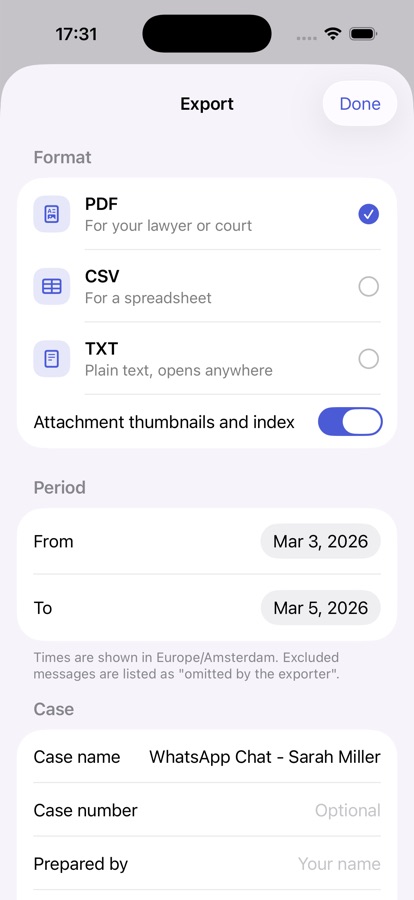
- Pick PDF, CSV or TXT and export.
- Send the file to your computer: AirDrop it to a Mac, or email it to yourself, then download the attachment on the computer like any other file.
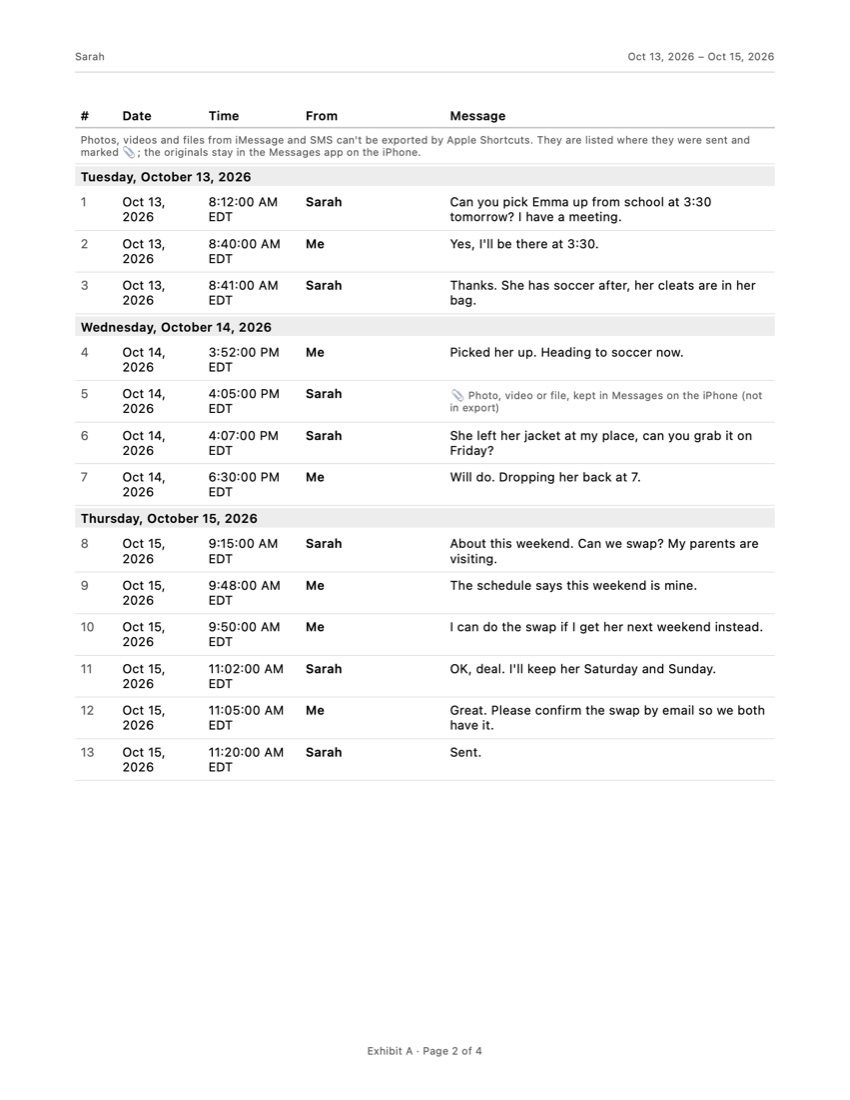
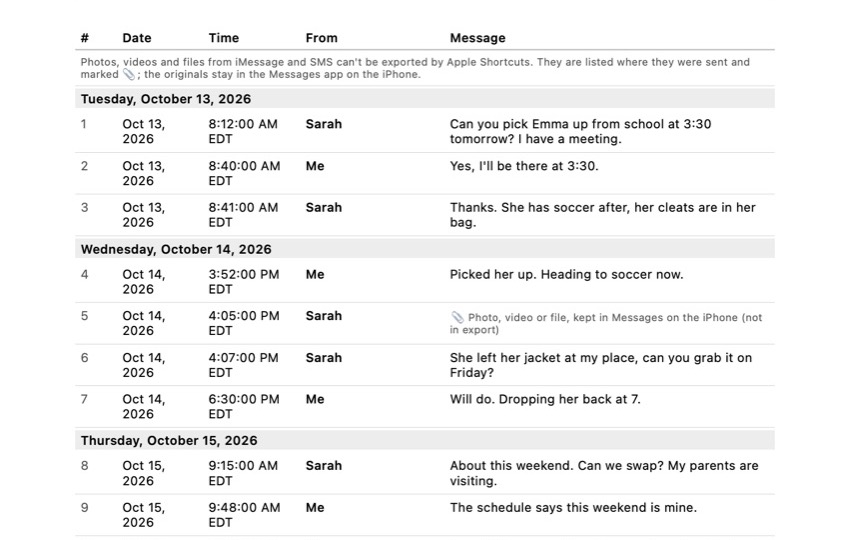
The PDF has a cover page, a numbered table with the date, time and sender of every message, “Page X of Y” on every page and an integrity page with SHA-256 fingerprints, so anyone can check later that the file was not changed. CSV is handy when you want the messages in a spreadsheet; TXT is plain text. The honest limit: Apple Shortcuts cannot export photos, videos or other attachments from Messages, so the PDF lists each attachment in its place instead of showing it. Save important photos separately (touch and hold the photo, then Save). Your conversations are processed on your iPhone and are not uploaded. Exhibit is free to download.
Method 2: Download the conversation to a Mac as a PDF
Best if you have a Mac signed in with the same Apple Account. It is free and it can cover long threads.
- On the iPhone, open Settings, tap your name, then iCloud. Under Saved to iCloud, tap See All, then Messages in iCloud, and turn on Use on this iPhone.
- On the Mac, open Messages, choose Messages > Settings > iMessage and turn on Enable Messages in iCloud.
- Give it time. A long history can take hours to arrive on the Mac. Open the conversation and scroll all the way up to the oldest message you need, so the Mac has loaded it.
- Choose File > Print. In the print window, open the PDF menu and choose Save as PDF.
You now have a PDF in your Downloads or Documents folder. Two things to watch. Texts from Android phones (green bubbles) only appear on the Mac if they synced through iCloud or Text Message Forwarding is on, so compare the PDF with the phone. And the PDF follows how Messages lays out the chat on the Mac, so check in the preview that the dates and times you need are actually printed.
Method 3: Screenshots, sent to your computer
Best for a short exchange of a few messages.
- Open the conversation. Swipe left and hold to reveal the time of each message.
- While holding, press the side button and volume up at the same time to take a screenshot.
- Scroll and repeat, overlapping each screenshot a little.
- In Photos, select the screenshots and AirDrop or email them to your computer.
How long it takes: a screen holds about 10 messages, so 500 messages means about 50 screenshots, each with a swipe-left for the times, then sending and sorting them in order. Count on roughly an hour or more.
You get image files, not a text file. They show exactly what was on screen, but only the times you revealed, often without the year, and nothing in between screenshots. Twenty screenshots of a long argument are hard for anyone to read, so for more than a couple of screens, use Method 1 or 2.
Method 4: Back up the iPhone to a computer
A backup is the safety net for all your messages, but it is not a download you can open.
- Connect the iPhone to a Mac (Finder) or to a Windows PC (the Apple Devices app).
- Select the iPhone and choose to back up all the data on the iPhone to this computer, then Back Up Now.
The messages are now stored on the computer, inside the backup. You cannot double-click them or attach them to an email: they sit in a database file meant for restoring a phone, not for reading. Desktop programs exist that read a backup and turn messages into files. If you use one, pick a well-known one and read its privacy policy, because it gets access to everything on your phone, not just the one conversation you need.
Method 5: WhatsApp chats
WhatsApp is separate from Messages and has its own export.
- Open the chat and tap the contact or group name at the top.
- Scroll down and tap Export Chat.
- Choose Without Media for just the text, or Attach Media to include photos and videos.
- Save the file to Files, email it, or open it in Exhibit to turn it into a PDF.
The export is a text file with a date, time and sender on each line. Media makes the file much larger, and very long chats with media may be shortened by WhatsApp itself.
The download that does not include your texts
Apple lets you request a copy of the data linked to your Apple Account at privacy.apple.com. It sounds like the obvious way to download everything, and many people try it first. But your messages are not part of it. Apple’s own help page explains that messages are encrypted on your device and cannot be read without your passcode, so they are left out. The request takes days and you get account records, not your conversations.
The same goes for carriers. Your phone company may show who you texted and when on a bill or account page, but not what was said, and iMessages (blue bubbles) do not go through the carrier’s text system at all.
If you need texts for a lawyer, HR or the police, download the whole conversation around the important messages, not only the messages themselves, and do not edit the copy you hand over. Keep the original conversation on the phone. Whether a court or employer accepts a copy depends on who decides and where, so ask your lawyer what format they want before you start. Our guides cover related questions as they come up.
Frequently asked questions
Can I download my text messages from iCloud.com?
No. iCloud.com in a browser shows things like Mail, Photos, Notes and Drive, but not Messages. Messages in iCloud only syncs your conversations between your own Apple devices; it does not give you a file to download.
Can I download all my text messages at once?
A backup to a computer saves every conversation at once, but in a format you cannot open as a readable file. For a readable copy, export the conversations you actually need one by one. For a lawyer or HR, one complete conversation is usually more useful than a dump of everything.
How do I get text messages from my iPhone onto a Windows PC?
Export the conversation on the iPhone to a PDF, CSV or TXT file, then email it to yourself or upload it to a cloud drive you can open on the PC. The Mac methods on this page do not work on Windows, and a backup made with the Apple Devices app on Windows stores messages in a form you cannot read directly.
Does downloading texts delete them from my iPhone?
No. Every method here makes a copy. The conversation stays in Messages. Keep it there, especially if the messages might matter later in a dispute.
Can I download a WhatsApp chat from my iPhone?
Yes. WhatsApp has its own Export Chat option, which creates a text file of the chat, with or without media, that you can save or send. That file can also be opened in Exhibit to turn the chat into a PDF with a page number on every page.
Sources
- Apple Support: Set up Messages on iPhone (Messages in iCloud)
- Apple Support: Print or create a PDF of a conversation in Messages on Mac
- Apple Support: Set up iCloud for Messages on all your devices
- Apple Support: Back up iPhone
- Apple Support: Get a copy of the data associated with your Apple Account
- WhatsApp Help Center: How to export your chat history
Export the whole conversation
Exhibit turns an iMessage, SMS or WhatsApp conversation into one PDF with every date, time and sender, right on your iPhone. No computer, no account.
Get Exhibit, free download