How to print text messages from your iPhone
You need a conversation on paper: for a lawyer, a landlord, an insurance claim, or just to keep. You open Messages, look for a Print button, and there isn't one. That is not you missing something. Apple never added it to Messages on iPhone, so every way to print a text goes through a detour.
Short answer
Messages on iPhone has no Print option. For a complete record with every date, time and sender, export the conversation to a PDF on the iPhone with an app such as Exhibit, then print the PDF. With a Mac you can also print a whole conversation from Messages with File > Print. For just a few messages, screenshots printed from Photos work, but they only show what fits on the screen.
On this page
- Which method should you use?
- Why there is no Print button in Messages
- Method 1: Export the whole conversation to a PDF, then print
- Method 2: Print the whole conversation from a Mac
- Method 3: Screenshots, printed from Photos
- Method 4: Copy and paste into Notes or an email
- Before you print texts for a lawyer, HR or the police
Which method should you use?
 ExhibitExhibitexport app
For a printout someone has to rely on, an export app is the only one of these four that prints the whole conversation with every date and time, page numbers and a check that nothing changed, in about 5 minutes. Printing 500 messages as screenshots means about 50 images and roughly an hour.
Why there is no Print button in Messages
On a Mac, Messages has File > Print. On iPhone it does not, and iOS 26 did not change that. Long-pressing a message gives you Copy, Reply and More, but none of these print or export the conversation. So you have three detours on the iPhone itself (an export app, screenshots, copy and paste) and one on a Mac.
Which one is right depends on two questions: how many messages you need, and whether the printout has to show when each message was sent and who sent it. For anything that might end up with a lawyer, HR or the police, the answer to the second question is almost always yes.
Method 1: Export the whole conversation to a PDF, then print
Best for a complete record without a computer. This is what Exhibit is built for.
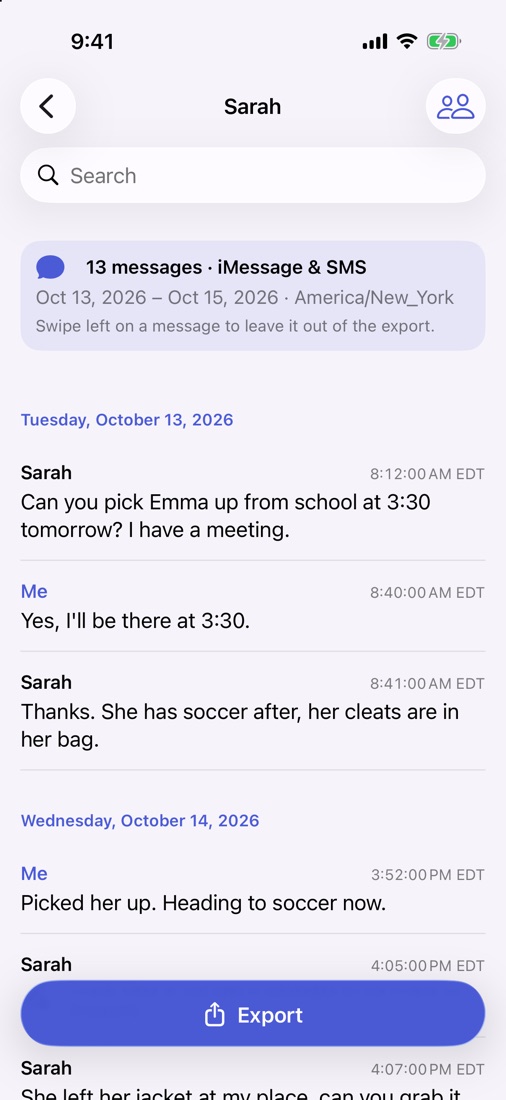
- Install Exhibit and add the free Exhibit shortcut once (one tap; it uses Apple’s Shortcuts app).
- Pick the conversation and the period you need.
- Export as PDF, then tap Share > Print, or send the PDF to your lawyer or a print shop.
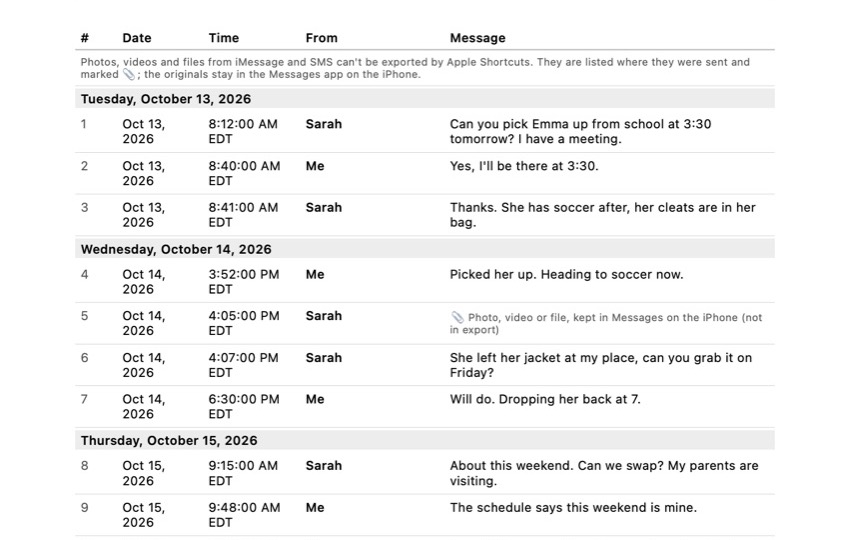
The PDF has a cover page, every message in a numbered table with its date, time and sender, “Page X of Y” on every page, and an integrity page with SHA-256 fingerprints, so anyone can check later that the file did not change, plus a declaration you can sign with your finger right in the app. One honest limit: Apple Shortcuts cannot export photos, videos or files from Messages, so Exhibit lists each attachment where it appeared instead of printing the picture. If the photos matter, save them separately from the conversation (touch and hold > Save) and print them with Method 3. Exhibit is free to download; exporting is a one-time payment, no subscription.
Method 2: Print the whole conversation from a Mac
Best for long conversations, if you have a Mac signed in to the same Apple Account.
- On the iPhone, turn on Messages in iCloud: Settings > your name > iCloud > See All > Messages in iCloud > Use on this iPhone.
- On the Mac, open Messages, go to Messages > Settings > iMessage and select Enable Messages in iCloud. Wait until the conversation has fully synced; older messages can take a while to appear.
- Open the conversation and scroll up to the oldest message you need, so it is loaded.
- Choose File > Print (Command-P). Check the preview, then print, or use the PDF menu in the print window to save a PDF.
What you keep: the conversation as Messages on the Mac shows it, so many messages on one page. Watch out for two things. SMS messages from Android phones only reach the Mac if they synced through Messages in iCloud or Text Message Forwarding. And the printout follows the Mac’s layout, so check in the preview that the dates and times you need are on it.
Method 3: Screenshots, printed from Photos
Best for a handful of messages.
- Open the conversation in Messages.
- Swipe left on the conversation and hold. The time of every message appears on the right. Keep holding.
- While you hold the swipe, take a screenshot with your other hand: press the side button and the volume up button at the same time.
- Scroll up and repeat until you have every part you need. Overlap each screenshot a little, so nothing falls between two images.
- Open Photos, select the screenshots, tap Share, then Print. Choose an AirPrint printer and print.
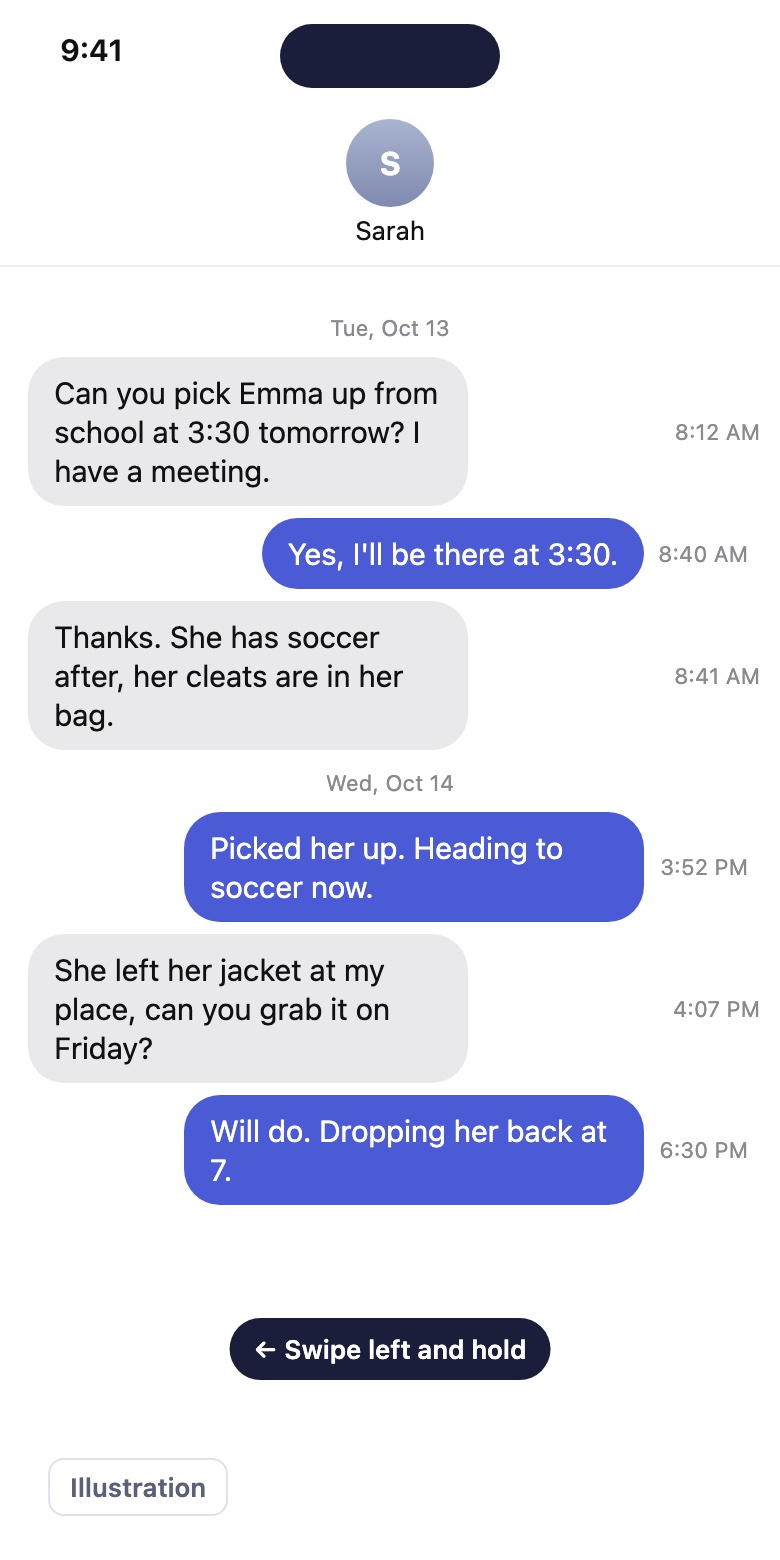
How long it takes: a screen shows about 10 messages, so 500 messages means about 50 screenshots, each with a swipe-left for the times, and then sorting and printing them in the right order. Count on roughly an hour or more.
What you keep: exactly what was on screen, including contact names and the times you revealed. What you lose: anything outside the screenshots, the year (Messages shows dates like “Mon 9:41” for recent days), and the order if you print many images. A screenshot of a full-page scroll does not exist in Messages; full-page screenshots only work in apps like Safari.
Method 4: Copy and paste into Notes or an email
Best for one or two messages when the time does not matter.
- Touch and hold a message, tap Copy.
- Paste it into a note or an email to yourself.
- Print the note or email (Share > Print), or print the email from a computer.
What you lose: almost everything that makes a message a record. The pasted text has no date, no time and no sender name, and you can only copy one message at a time. Fine for a recipe or an address, not for a dispute.
Before you print texts for a lawyer, HR or the police
A printout is only as useful as it is complete. Print the conversation around the important messages, not only the messages themselves, so the context is visible. Do not edit, crop or annotate the copy you hand over; make a separate marked-up copy for yourself if you need one. Number the pages. Note down the phone numbers or email addresses behind the contact names, because a printout shows the name you saved, not the number.
Most important: keep the phone and the original conversation. A printout is a copy. If anyone ever questions it, the original messages on the device are what can be checked. Our situations pages go into what to keep in specific cases, such as custody or harassment.
Frequently asked questions
Can I print a whole text conversation from my iPhone without a computer?
Not with Apple's own apps: without a computer you are limited to screenshots, one screen at a time. An export app that runs on the iPhone, such as Exhibit, can turn the whole conversation into one PDF that you print with AirPrint or send to a print shop.
Can I print text messages without a printer?
Yes. Save the conversation as a PDF instead (on a Mac: File > Print, then PDF; on the iPhone: with an export app) and email it, or take the PDF to a print shop or library. Many print shops print straight from a PDF on your phone.
Do printed text messages show the date and time?
Only if they were visible when you printed. In a screenshot you only see the times you revealed by swiping left. A printout from a Mac or an exported PDF can include the date and time of every message, so check before you hand it over.
How do I print text messages for court?
Print the whole conversation around the messages that matter, with dates, times and senders, number the pages, and keep the phone itself. Whether a court accepts the printout depends on the court and your jurisdiction, so ask your lawyer or the court's self-help center what they need.
Does printing or exporting delete the messages from my iPhone?
No. Screenshots, the Mac printout and an export only copy the messages. Keep the original conversation on the phone; do not delete it after printing.
Sources
Export the whole conversation
Exhibit turns an iMessage, SMS or WhatsApp conversation into one PDF with every date, time and sender, right on your iPhone. No computer, no account.
Get Exhibit, free download