How to save text messages (SMS) on your iPhone
There is a conversation on your phone you cannot afford to lose. Maybe it is a record of what someone promised, maybe it is the last messages from someone you love, maybe you just bought a new phone. You look for a Save button in Messages and there is none.
Short answer
To keep texts on the iPhone, go to Settings > Apps > Messages > Keep Messages and choose Forever, then make sure they are backed up (Messages in iCloud, or a backup to a computer). To save a copy you can open, share or print, take screenshots for a few messages or export the whole conversation to a PDF or text file with an export app such as Exhibit. A backup protects the phone; only a copy gives you a file you can hand to someone.
On this page
Which method should you use?
 ExhibitExhibitexport app
Turn on Keep Messages: Forever and make a backup so nothing disappears. For any conversation you may need to hand to someone, add an exported copy: it takes about 5 minutes, where 500 messages as screenshots is about 50 images and roughly an hour.
Two different things people mean by “save”
“Save my texts” can mean two things, and they need different methods:
- Keep them: make sure the messages stay on your phone and survive a lost, broken or replaced iPhone. That is about settings and backups.
- Save a copy: get the conversation out of Messages as something you can open, send or print, like a screenshot or a PDF. That is what you need when someone else has to read it.
Most people need both. A backup cannot be opened and read; a copy does not stop the phone from deleting the original. The steps below are for iOS 26. They work the same for blue iMessages and green SMS texts.
Step 1: Stop the iPhone from deleting old messages
- Open Settings, scroll down and tap Apps, then Messages.
- Scroll to Message History and tap Keep Messages.
- Choose Forever.
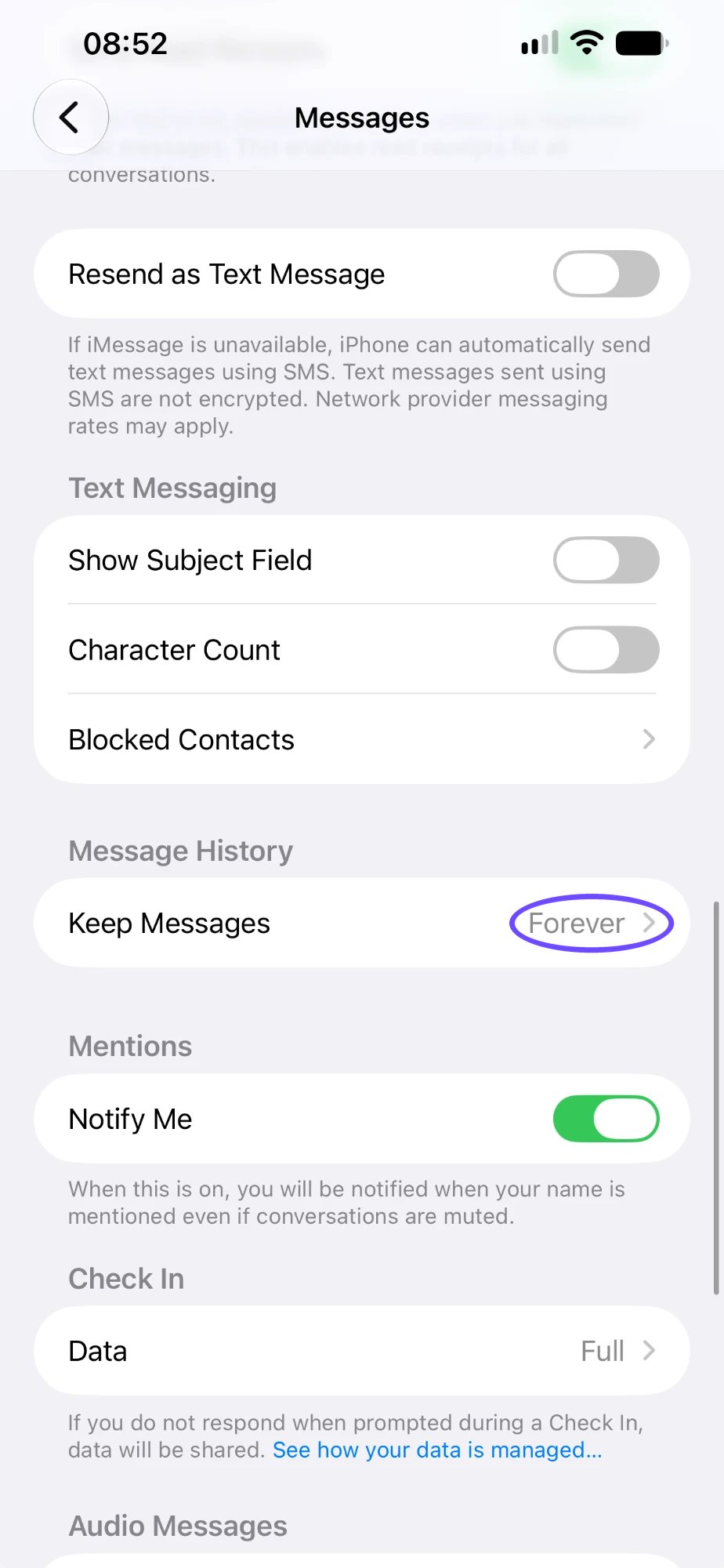
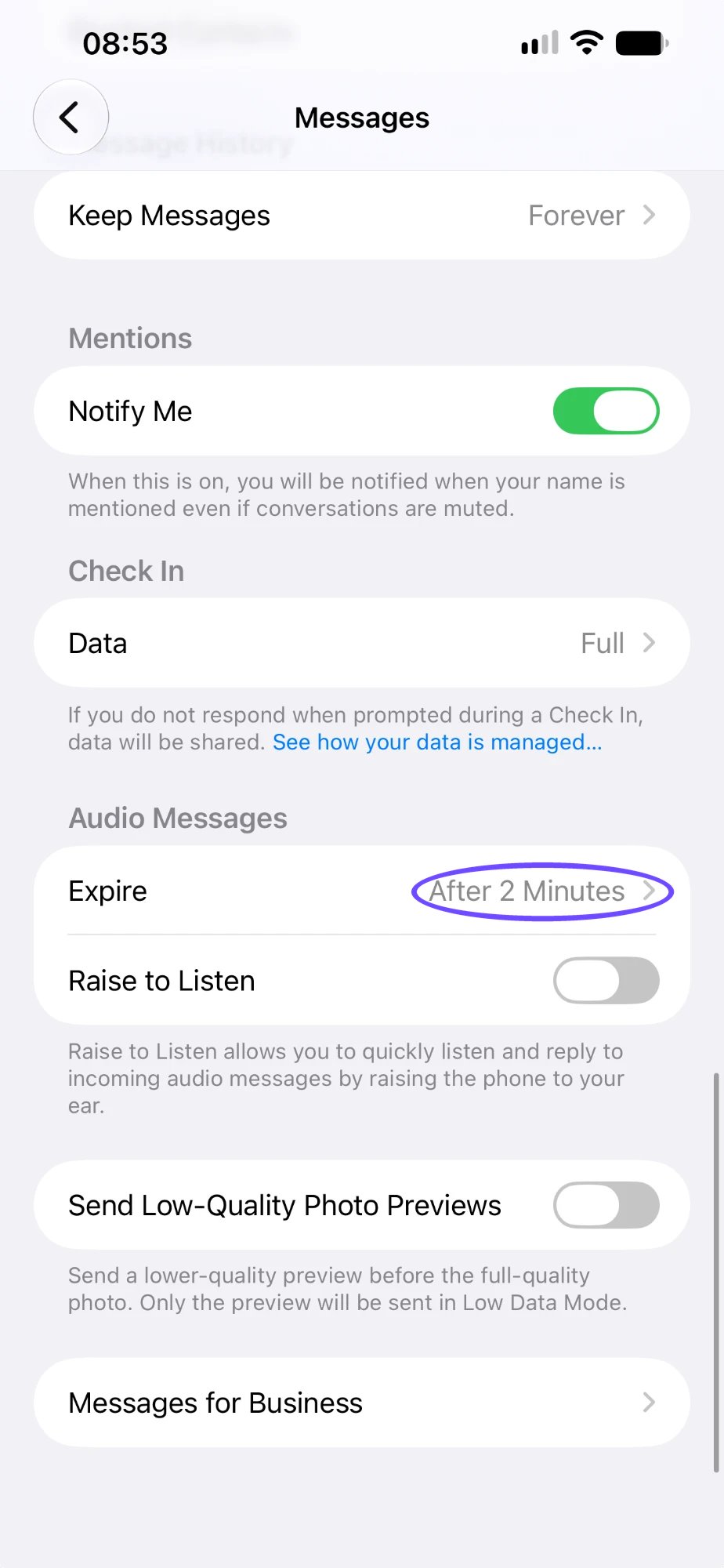
If it was set to 30 Days or 1 Year, older messages have already been removed. Switching to Forever only protects what is still there. While you are in Messages settings, also look at Audio Messages > Expire: voice messages are removed after 2 minutes unless it is set to Never.
Step 2: Back up the messages
Pick one; both protect against a lost or broken phone.
With iCloud. Go to Settings > [your name] > iCloud. Tap See All, then Messages in iCloud, and turn on Use on this iPhone. Your messages are now stored in iCloud and appear on your other Apple devices. If Messages in iCloud is off, turn on iCloud Backup on the same screen instead; your messages are then part of the daily backup. Both need enough iCloud storage.
With a computer. Connect the iPhone to a Mac with a cable, select it in the Finder sidebar, choose to back up all data to this Mac and tick Encrypt local backup. On Windows, use the Apple Devices app. A local backup is a snapshot: it holds the messages as they were on the day you made it, even if they change on the phone later.
What you keep: everything, including photos and videos in the conversations. What you cannot do: open the backup and read or send one conversation. You only get the messages back by restoring a whole iPhone.
Step 3: Save one text or a few
For a single message or a short exchange, you do not need anything extra.
- Screenshot: swipe left in the conversation to show the times, then press the side button and volume up together. Screenshots land in Photos and can be shared or printed. Fine for a few messages; a screen holds about 10, so 500 messages means about 50 screenshots and roughly an hour of work.
- Copy: touch and hold a message, tap Copy and paste it into Notes or an email. You get the words only, without the date, time or sender.
- Photos and videos: touch and hold the attachment and tap Save to put it in your photo library.
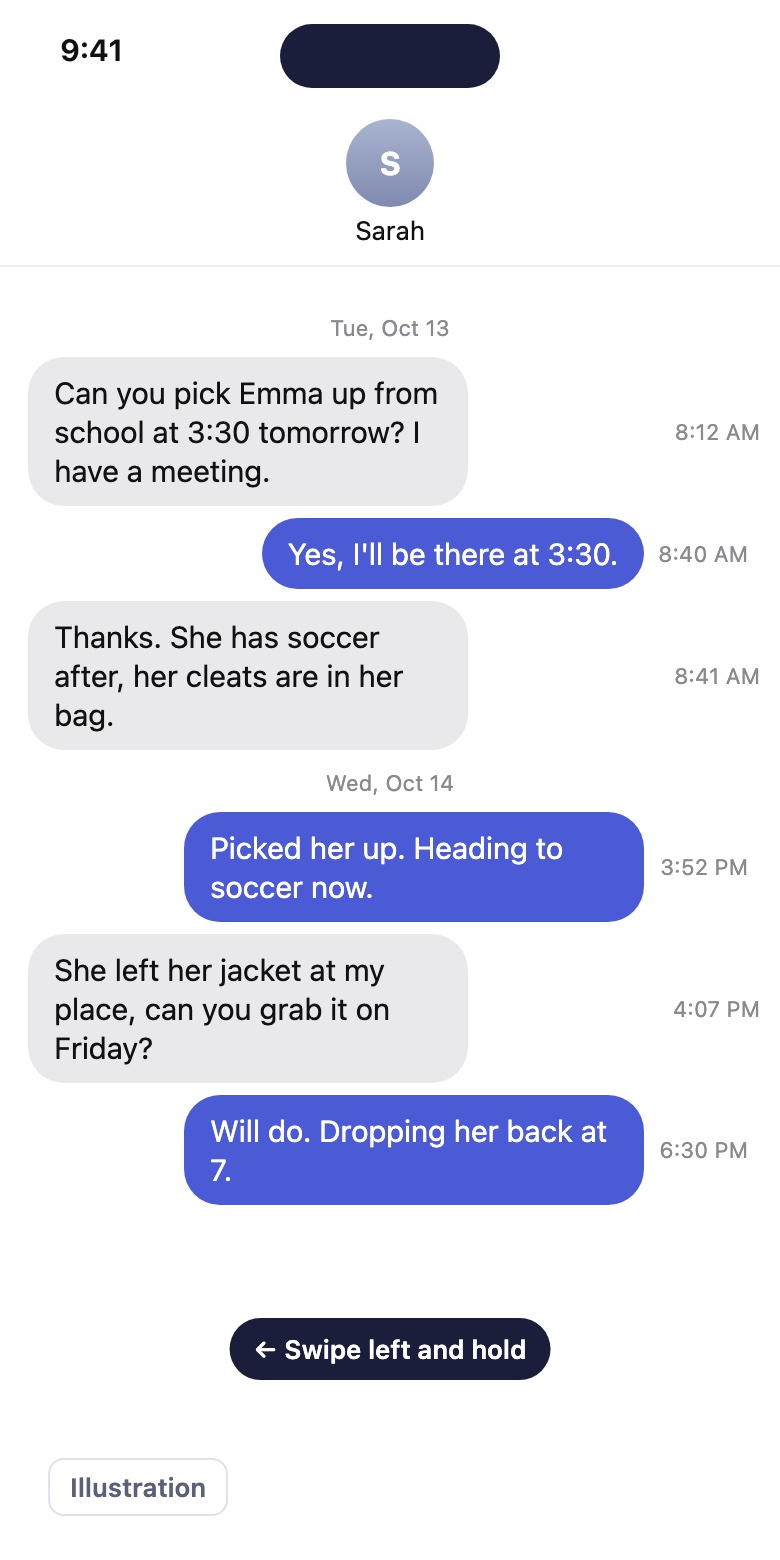
Step 4: Save a whole conversation as a file
When you need the complete conversation as one document, for yourself, a lawyer or an insurer, you need an export. Messages on the iPhone cannot do that by itself, which is what Exhibit is built for.
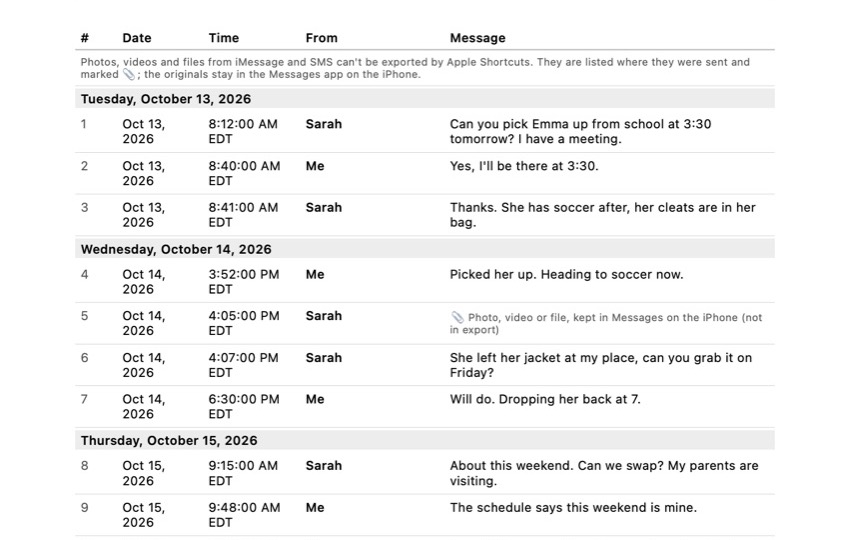
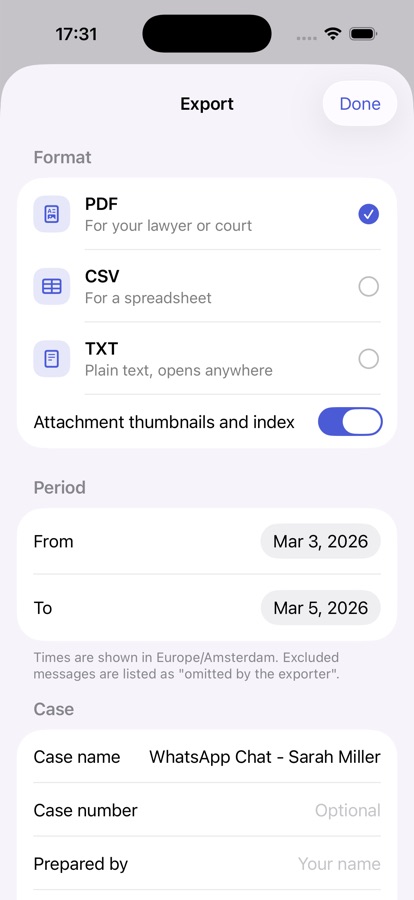
You add the free Exhibit shortcut once, pick the conversation and the period, and get a PDF, CSV or TXT file on the iPhone, without a computer. The PDF lists every message in a numbered table with its date, time and sender, shows the time zone, and ends with an integrity page with a SHA-256 fingerprint, so anyone can check later that the file did not change. Your conversations are processed on your iPhone and are not uploaded.
The honest limit: Apple Shortcuts cannot export photos, videos or files from Messages, so the PDF marks where each attachment was instead of including it. Save the pictures separately with Step 3. Exhibit is free to download; exporting is a one-time payment, no subscription.
The iCloud mistake that deletes texts everywhere
Messages in iCloud is a sync, not a separate safe copy. If you delete a message or a conversation on one device, it disappears from all of them, and from iCloud too. The same goes for Keep Messages: set it to 30 Days on any device signed in to your account and older messages go everywhere. And because synced messages are left out of iCloud Backup, there is no second copy in the backup to fall back on.
So if a conversation could matter later, in a dispute, a divorce or a complaint at work, do not rely on iCloud alone. Make a computer backup, export the conversation to a file you store outside Messages, and keep the phone. Deleted messages stay in Recently Deleted for 30 to 40 days; after that they are gone. Our situations pages explain what else to keep in specific cases. Whether a court or employer accepts a saved conversation depends on who is asking and where; a lawyer can tell you what they need.
Tested on iPhone 13 Pro Max with iOS 26.4.1, October 26, 2026. Message settings checked on the device.
Frequently asked questions
Does the iPhone delete old text messages by itself?
Only if Keep Messages is set to 30 Days or 1 Year. Then messages older than that are removed automatically, attachments included. Check Settings > Apps > Messages > Keep Messages; Forever means the iPhone never removes them on its own.
Are my texts saved in iCloud Backup?
It depends. If Messages in iCloud is off, your messages are part of your iCloud Backup. If it is on, they are not in the backup, because they are already stored in iCloud through syncing, according to Apple. Either way, they are only saved if the backup or sync has actually run.
Can I save a text conversation as a PDF on iPhone?
Not with the Messages app itself; it has no export or print option on the iPhone. On a Mac you can open the conversation in Messages and choose File > Print, then save as PDF. On the iPhone you need an export app, such as Exhibit, to turn the conversation into a PDF.
I deleted a text by accident. Can I get it back?
Open Messages, tap Edit or Filters at the top of the conversation list, then Show Recently Deleted. Apple keeps deleted messages there for 30 to 40 days. After that, the only way back is an older backup made before you deleted it, and restoring one replaces what is on the phone now.
Will my texts move to a new iPhone?
Yes, if you set up the new iPhone from a backup or by transferring directly from the old one, or if Messages in iCloud is on and you sign in with the same Apple Account. Wait until Messages has finished downloading before you erase the old phone.
Sources
- Apple Support: Keep track of messages on iPhone (Keep Messages)
- Apple Support: Send and receive audio messages (Expire)
- Apple Support: What does iCloud back up?
- Apple Support: Set up iCloud for Messages on all your devices
- Apple Support: Back up iPhone
- Apple Support: Recover deleted text messages on your iPhone or iPad
Export the whole conversation
Exhibit turns an iMessage, SMS or WhatsApp conversation into one PDF with every date, time and sender, right on your iPhone. No computer, no account.
Get Exhibit, free download