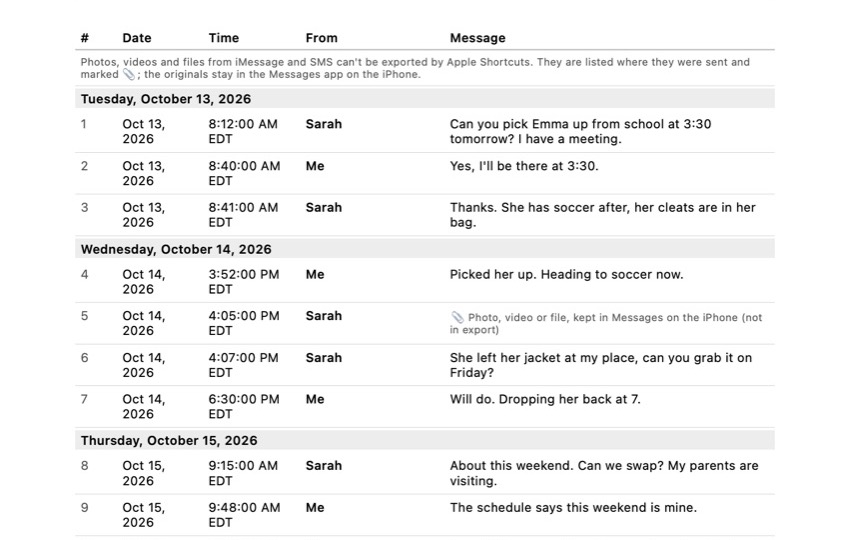
 Exhibit
Signing the declaration in Exhibit
A printed conversation often comes with a question: who made this, and can they stand behind it? The last page of every Exhibit PDF has a short declaration for exactly that. You can fill it in and sign it on your iPhone before you share the file.
Short answer
In Exhibit's export screen, turn on Sign the declaration, type your full name and draw your signature with your finger. The date is added automatically, and the PDF notes that it was signed electronically in the app. It is off by default: then the lines stay blank for a pen. Some courts require a handwritten or notarized signature, so ask your lawyer which one you need.
On this page
What the declaration says
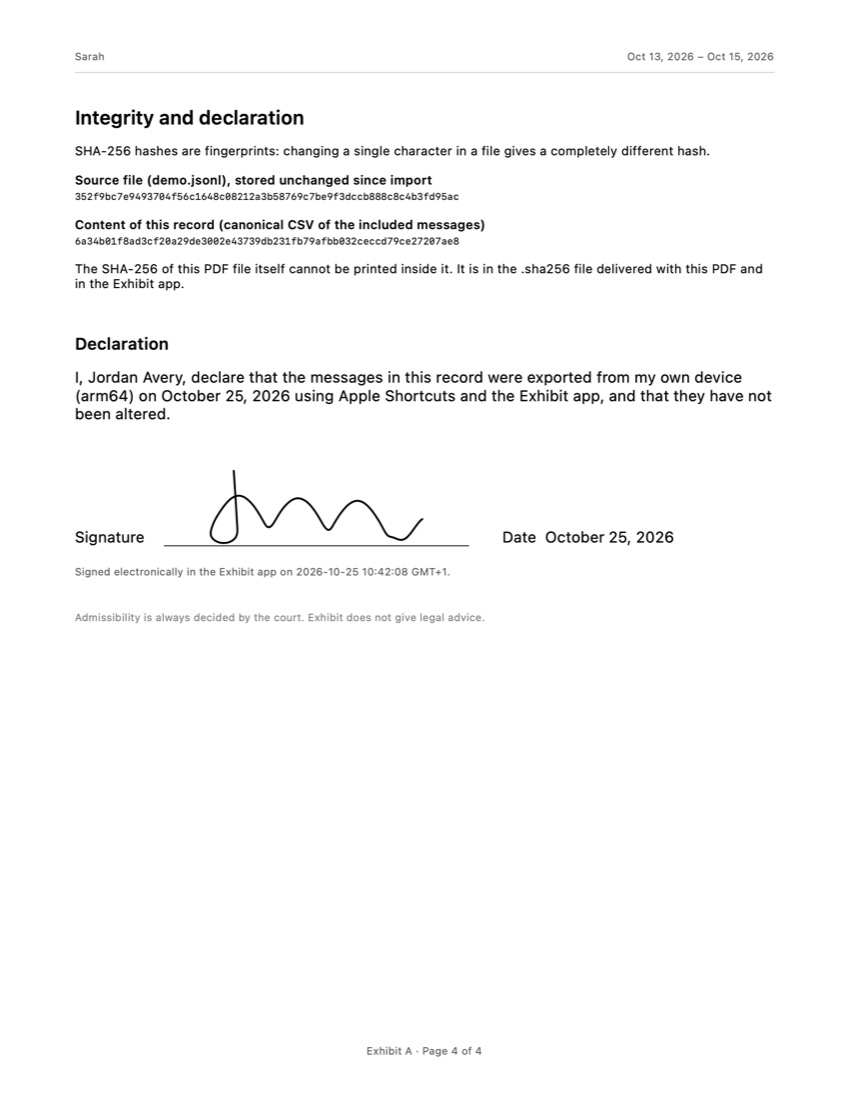
The declaration is one sentence: that the messages in the record were exported from your own device, on a stated date, using Apple Shortcuts and the Exhibit app, and that they have not been altered. Below it are lines for your name, your signature and the date. It sits on the integrity page, right under the SHA-256 fingerprints, so the statement and the way to check it are on the same page.
How to sign it in the app
- Open the conversation and tap Export.
- Choose PDF and the period.
- Under Declaration, turn on Sign the declaration.
- Type your full name and draw your signature with your finger.
- Export. The date is filled in for you, and the PDF adds a line saying it was signed electronically in the Exhibit app, with the date, time and time zone.
Export stays blocked until both your name and a drawing are there, or until you turn signing off again. That way you never send a half-filled declaration by accident.
When to use a pen instead
Leave signing off when the person asking for the record wants a handwritten or notarized signature, or when you are not sure yet. The lines then stay blank, and you can print the PDF and sign it by hand, in front of a notary if needed. Nothing else about the record changes.
What it does not do
Signing does not make the record official, certified or approved by a court. It is your own statement about where the messages came from. A court or agency decides what weight to give it, and a lawyer can tell you whether you need something more formal, such as a sworn affidavit.
Where the declaration fits
Most people sign the declaration when they hand a conversation to someone who has to rely on it: a lawyer, an HR department or a landlord. Before that, it helps to make sure nothing is lost: our guide on saving text messages on an iPhone covers Keep Messages and backups. If the record is going on paper, see how to print text messages from an iPhone.
Frequently asked questions
Is an electronic signature on the declaration valid?
It is an electronic signature on your own statement. Whether that is enough depends on what it is for: some courts, agencies and lawyers accept it, others want a handwritten signature or a notarized affidavit. Ask your lawyer or the court's self-help center; if in doubt, leave the lines blank and sign the printout with a pen.
Is my signature stored?
No. Your drawn signature is placed in that one PDF and is never saved. Exhibit only remembers the name you typed, on your iPhone, so you do not have to enter it again.
Can I sign a free preview?
No. Previews never carry a signature, so a signed document is always a complete export.
Does signing change the SHA-256 fingerprints?
The fingerprint of the messages stays the same, because the signature does not change the content. The fingerprint of the PDF file itself is calculated after the signature is placed, so it matches the signed file.
Sources
Export the whole conversation
Exhibit turns an iMessage, SMS or WhatsApp conversation into one PDF with every date, time and sender, right on your iPhone. No computer, no account.
Get Exhibit, free download