 Exhibit
Importing a WhatsApp chat into Exhibit
WhatsApp can export a chat, but what you get is a zip file with a plain text log and loose media files. Readable for a computer, not for a person. Exhibit takes that export on your iPhone and turns it into the same clean record it makes for iMessage.
Short answer
In WhatsApp, open the chat, tap the contact or group name, scroll down and tap Export Chat. Choose Attach Media if you want photos included, or Without Media for text only, then pick Exhibit in the share sheet. Exhibit reads the export on your iPhone, lets you mark who you are, and exports a PDF, CSV or TXT with every message numbered, dated and attributed.
On this page
Step by step
- Open WhatsApp and the chat you need.
- Tap the contact or group name at the top, scroll down and tap Export Chat.
- Choose Attach Media or Without Media.
- In the share sheet, choose Exhibit. If you do not see it, tap More, or save the file to Files and open it from Exhibit.
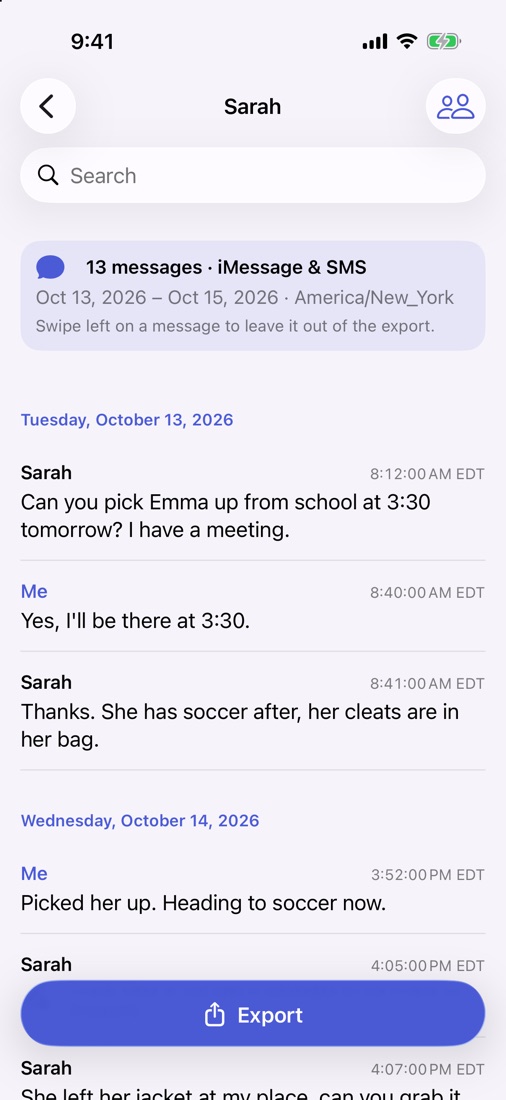
- In Exhibit, check the messages, mark which participant is you and pick the period.
- Export as PDF, CSV or TXT.
What WhatsApp gives you, and what Exhibit adds
WhatsApp’s export is a text file where each line holds a date, a time, a name and a message, plus separate media files if you included them. It is complete, but hard to read and easy to misread: lines wrap, dates use your phone’s format, and nothing shows which media file belongs where.
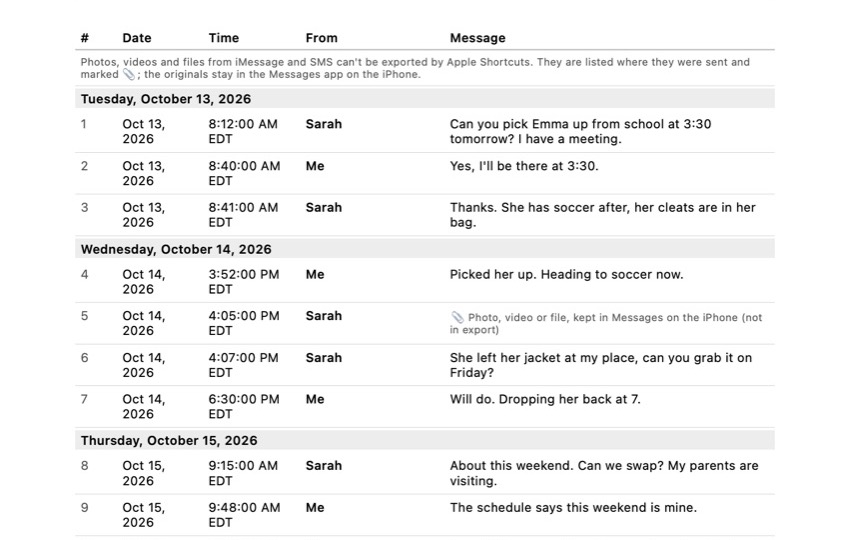
Exhibit turns that into a numbered table, groups messages by day, links media to the message that sent them, states the time zone, and adds the cover page, page numbers and the integrity page with SHA-256 fingerprints. Same content, readable by anyone you hand it to.
Long chats
Very long WhatsApp chats may hit WhatsApp’s export limits, especially with media. If that happens, export the period you need in parts or without media, and keep the original chat on the phone. Each Exhibit export states its period, so several PDFs still fit together clearly.
Before you share it
Read the PDF once before you send it. Check that the names are right, that the period covers what was asked for, and that you left out only what you meant to. If the conversation matters for a dispute, keep the chat on your phone as well: the export is a copy, and the original is what can be checked.
WhatsApp and iMessage in the same record format
Many disputes run over both apps: the arrangements in WhatsApp, the quick replies in iMessage. Exhibit gives both the same layout, so two PDFs side by side read the same way. For iMessage and SMS, see how to download text messages from an iPhone and how to save them so nothing is deleted.
Frequently asked questions
Should I export with or without media?
With media if photos, voice notes or documents in the chat matter; Exhibit lists them in the attachment index. Without media is smaller and faster. WhatsApp limits how many messages and media files one export can contain, so very long chats may need to be exported in parts.
Why do I have to say who I am?
A WhatsApp export uses the names as saved on the phone and does not mark which participant is the phone's owner. Telling Exhibit once makes the PDF show your messages as yours.
Are the times right if the other person lives elsewhere?
The export uses your phone's time settings. Exhibit states the time zone on the cover page, so a reader in another state knows how to read the times.
Is the chat uploaded anywhere?
No. WhatsApp hands the export file to Exhibit on your iPhone, and Exhibit processes it there. Nothing is uploaded.
Sources
Export the whole conversation
Exhibit turns an iMessage, SMS or WhatsApp conversation into one PDF with every date, time and sender, right on your iPhone. No computer, no account.
Get Exhibit, free download