How to archive text messages on your iPhone
You want an old conversation out of the way, but you do not want to lose it. Maybe it is a finished chapter, maybe it is something you might need to prove one day. WhatsApp and email have an Archive button, so you look for one in Messages and find nothing.
Short answer
Messages on the iPhone has no Archive button: a conversation either stays in your list or is deleted. To archive texts, keep a copy outside Messages. Set Keep Messages to Forever, then either export the conversation to a PDF or text file you store in Files, or make a computer backup and mark it as archived in Finder so it is never overwritten. Deleting the conversation afterwards is optional; with Messages in iCloud it disappears from all your devices.
On this page
- Which method should you use?
- Why there is no Archive button in Messages
- Step 1: Stop the iPhone from deleting old messages
- Step 2: Export the conversation to a file
- Step 3: Make an archived backup on a computer
- Step 4: Clear the conversation from your list (optional)
- The backup trap: your old archive gets overwritten
Which method should you use?
 Export to a fileExhibitExhibit
Of these methods, only an export and an archived computer backup survive deleting the conversation; the export is the one you can open and read later without restoring a phone, and it takes about 5 minutes per conversation.
Why there is no Archive button in Messages
In Mail and WhatsApp, “archive” means: take this out of my inbox, but keep it. Apple’s Messages app on iOS 26 has nothing like it. You can pin a conversation, mute it with Hide Alerts, or sort unknown senders and spam into their own lists with Filters, but a normal conversation is either in your list or deleted.
So archiving texts on an iPhone means two separate things, and you choose how far you go:
- Make sure the messages are kept, for years, even if the phone is lost.
- Keep a copy outside Messages, so you can clear the conversation from your list, or simply have something to open later that does not depend on the phone.
The steps below cover both. They work the same for blue iMessages and green SMS texts.
Step 1: Stop the iPhone from deleting old messages
- Open Settings, tap Apps, then Messages.
- Under Message History, tap Keep Messages.
- Choose Forever.
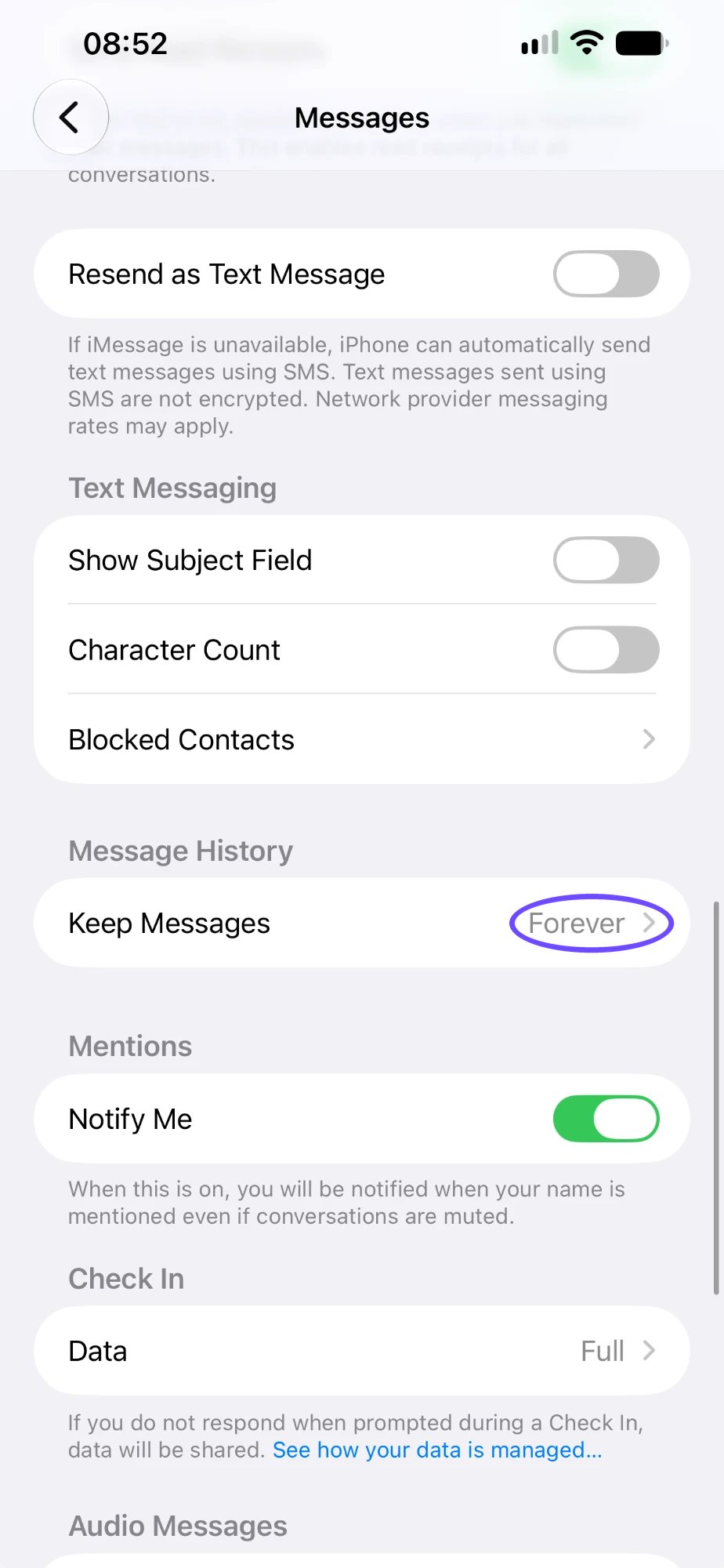
With 30 Days or 1 Year the iPhone removes older messages on its own, attachments included. This setting is the base of every archive: it keeps what is on the phone, but it is not a copy. If the phone breaks or the conversation is deleted, it is gone. More on keeping texts safe is in how to save text messages on iPhone.
Step 2: Export the conversation to a file
The most practical archive is a file you can open on any device: a PDF to read, or a CSV or TXT file to search. Messages cannot create one on the iPhone, which is why we built Exhibit.
- Add the free Exhibit shortcut to the Shortcuts app (one tap, once).
- In Exhibit, pick the conversation and the period you want to archive.
- Choose PDF, CSV or TXT and save the file to Files, iCloud Drive or another place you keep documents.
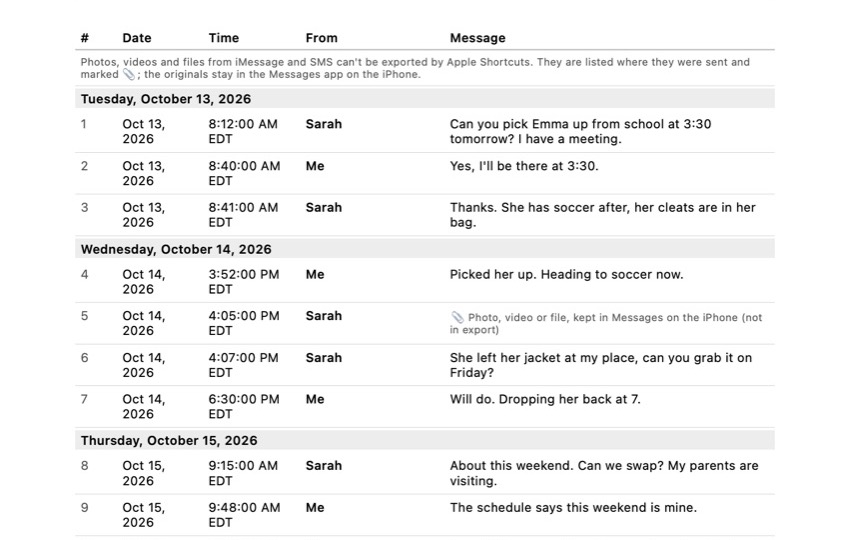
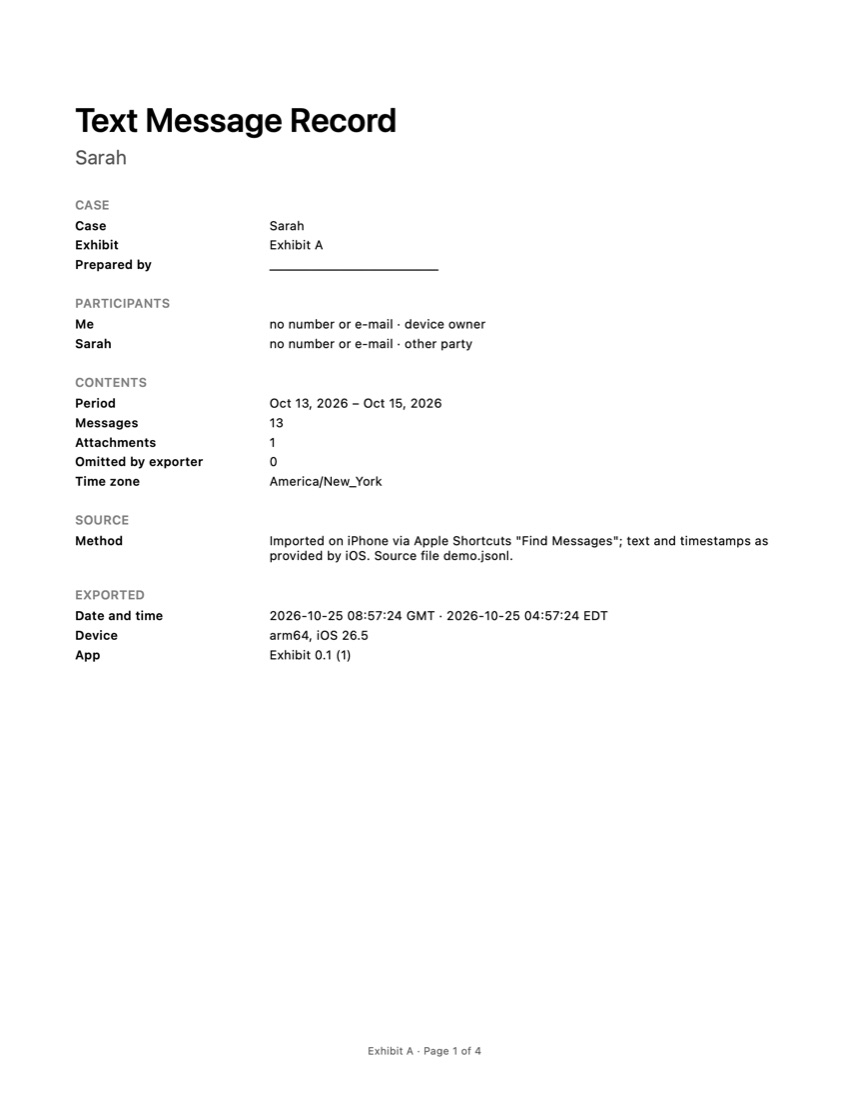
The PDF lists every message in a numbered table with date, time and sender, states the time zone, and ends with an integrity page with a SHA-256 fingerprint, so you can check years from now that the file was not changed. Your conversations are processed on your iPhone and are not uploaded.
What it does not do: Apple Shortcuts cannot export photos, videos or files from Messages, so the PDF marks where each attachment was instead of including it. Save the pictures you want separately (touch and hold, then Save). Exhibit is free to download; exporting is a one-time payment, no subscription. For the file formats and when to use which, see how to export text messages from iPhone.
Step 3: Make an archived backup on a computer
A computer backup holds everything, attachments included, as it was on the day you made it.
- Connect the iPhone to a Mac with a cable and select it in the Finder sidebar. On Windows, use the Apple Devices app.
- Choose to back up all data to the computer, tick Encrypt local backup and click Back Up Now.
- When it is done, click Manage Backups, right-click (or Control-click) the new backup and choose Archive.
The archived backup gets a date and is not replaced by the next backup. The limit: you cannot open it and read one conversation. The messages only come back by restoring a whole iPhone from it, which replaces what is on that phone.
Step 4: Clear the conversation from your list (optional)
Only do this once your copy is safe and you have opened it to check.
- In Messages, swipe left on the conversation.
- Tap the trash icon, then Delete.
The conversation goes to Recently Deleted for 30 to 40 days. With Messages in iCloud on, it disappears from your iPad and Mac too, and from iCloud itself: syncing deletes everywhere. That is exactly why the copy from Step 2 or 3 has to exist first.
WhatsApp is different. It does have an Archive button: swipe left on a chat and tap Archive. The chat leaves your main list but stays on the phone; tap Archived at the top of Chats to find it again. To keep a copy outside WhatsApp, use Export Chat, which Exhibit can turn into a PDF.
The backup trap: your old archive gets overwritten
Most guides stop at “back up your iPhone”. The catch is that a normal computer backup is replaced the next time you back up the same phone. If you make a backup today, delete a conversation tomorrow and back up again next week, the conversation is gone from both the phone and the backup. iCloud Backup works the same way and keeps only the latest backup per device.
That is why Step 3 ends with Archive: it freezes that backup. For anything you may need to read again, or show to someone, a downloaded copy of the conversation as a file is the safer archive, because it does not depend on restoring a phone, on iCloud storage or on the same Apple Account. Keep the file in two places, for example Files on the iPhone and a computer or USB drive.
Frequently asked questions
Is there an archive folder in iPhone Messages?
No. In iOS 26 the conversation list has filters such as Unknown Senders and Spam, and you can pin or mute a conversation, but there is no archive folder. Hiding a conversation without deleting it is not possible in Messages.
If I delete a conversation after exporting it, is the export still there?
Yes. An exported PDF, CSV or TXT file is a separate file in Files or on your computer. Deleting the conversation in Messages does not touch it. Check that the file opens and is complete before you delete anything.
Does archiving a WhatsApp chat back it up?
No. WhatsApp's Archive only moves the chat out of your main list; it stays on the phone and comes back if you unarchive it. A backup or an exported copy is a separate step, through WhatsApp's chat backup or Export Chat.
How long does the iPhone keep text messages?
As long as Keep Messages is set to Forever, the iPhone does not remove them on its own. With 30 Days or 1 Year it deletes older messages automatically, attachments included. Recently Deleted keeps deleted messages for 30 to 40 days.
Can I archive photos from a conversation too?
Yes, but separately. Touch and hold a photo or video and tap Save to put it in your photo library, or rely on a full backup. Exports made through Apple Shortcuts cannot include iMessage attachments.
Sources
Export the whole conversation
Exhibit turns an iMessage, SMS or WhatsApp conversation into one PDF with every date, time and sender, right on your iPhone. No computer, no account.
Get Exhibit, free download