How to export text messages from your iPhone
You need a conversation out of your phone in a format you can work with: a PDF to hand over, a spreadsheet to sort and search, or plain text to keep. You open Messages, look for Export, and find nothing. Not in the menu, not when you touch and hold a message, not in Settings.
Short answer
The Messages app on iPhone has no export option in iOS 26. To export one SMS or iMessage conversation with every date, time and sender, use an export app on the iPhone such as Exhibit: pick the conversation and a period, then choose PDF, CSV or TXT. With a Mac, you can save a synced conversation as a PDF with File > Print, but not as a spreadsheet. Desktop programs can export from a computer backup. Whatever you choose, photos from iMessage need to be saved separately.
On this page
- Which method should you use?
- Why there is no Export button in Messages
- Method 1: Export to PDF, CSV or TXT on the iPhone
- Method 2: Save the conversation as a PDF on a Mac
- Method 3: Export from a computer backup with a desktop program
- Method 4: Copy and paste, one message at a time
- WhatsApp has its own export
- Opening a CSV export in Excel without breaking it
Which method should you use?
 ExhibitExhibitexport app
Of these methods, an export app is the only one that gives you PDF, CSV or TXT from the iPhone alone, in about 5 minutes; with a Mac, Save as PDF is a free choice when a PDF is all you need. Copying and pasting loses the dates and times, so it only suits a message or two.
Why there is no Export button in Messages
Apple keeps your conversations inside the Messages app. You can read them, search them and sync them to your other Apple devices with Messages in iCloud, but iOS 26 has no menu that turns a conversation into a file. Touching and holding a message offers options such as Reply and Copy; the conversation details have no Export either.
So “export” always means a detour, and the detours differ in what comes out the other end. Before you start, decide what you actually need the file for:
- PDF when someone has to read it: a lawyer, HR, a landlord, or you, printing it later.
- CSV when you want to sort, filter or count messages in a spreadsheet.
- TXT when you want a light copy that opens anywhere and that you can search.
Each method below says which of these it can make. If you only need a file on your laptop and the format does not matter, our guide on how to download text messages from your iPhone covers backups and the Apple data request too.
Method 1: Export to PDF, CSV or TXT on the iPhone
This is the only route that makes all three formats without a computer. It is what Exhibit is built for.
- Install Exhibit and add its free shortcut for Apple’s Shortcuts app. You do this once, with one tap.
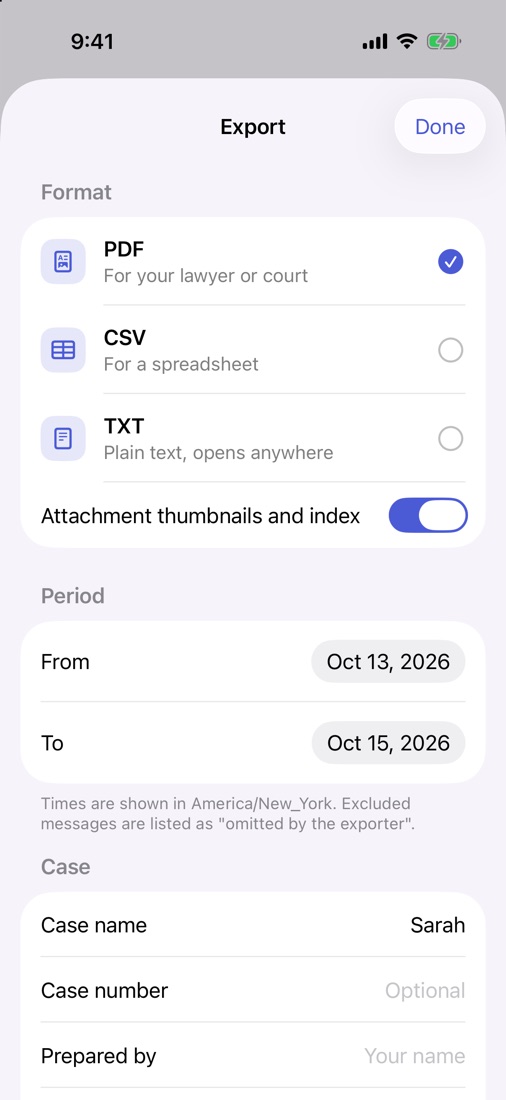
- In Exhibit, pick the conversation, set the period (From and To) and mark which participant is you.
- Choose PDF, CSV or TXT and export.
- Save the file to Files, AirDrop it, or send it by email.
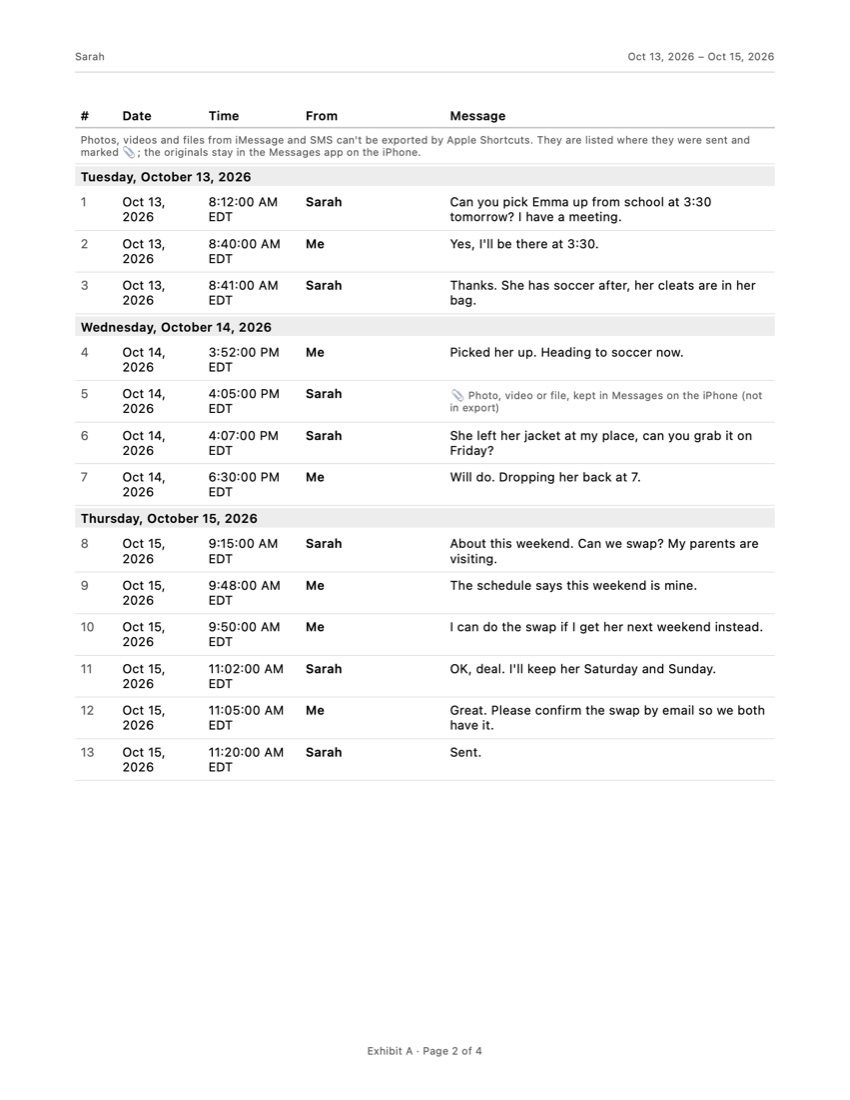
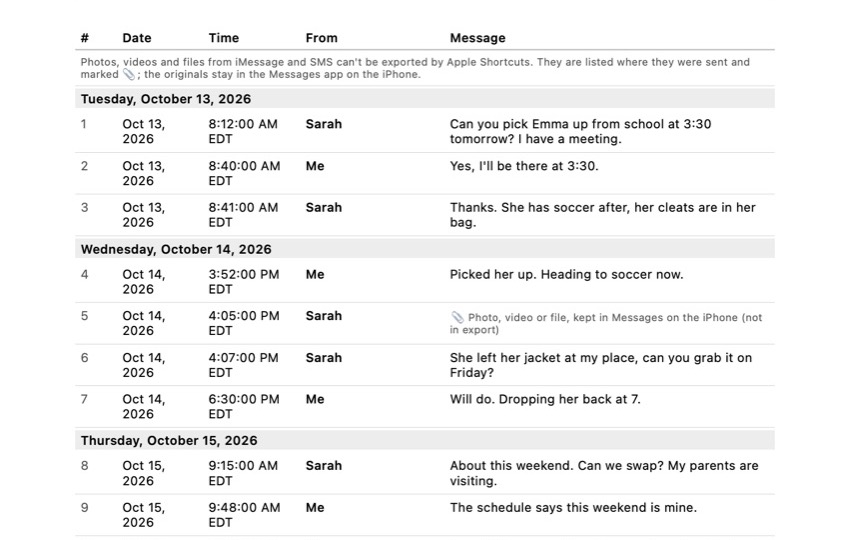
The PDF has a cover page, a numbered table with the date, time and sender of every message, “Page X of Y” on every page and an integrity page with SHA-256 fingerprints, so anyone can check later that the file was not changed. Times are shown in the conversation’s time zone, and the PDF says which one. The CSV has the same messages in rows, ready for a spreadsheet. You can leave single messages out; the cover page then states how many were omitted.
What it does not do: Apple Shortcuts cannot export photos, videos or other attachments from Messages, so each attachment appears in its place as a line in the record instead of the picture itself. Save the photos you need separately (touch and hold the photo, then Save). Your conversations are processed on your iPhone and are not uploaded. Exhibit is free to download, and it also turns a WhatsApp export into a PDF.
Method 2: Save the conversation as a PDF on a Mac
Free, if you have a Mac signed in with the same Apple Account. It only makes PDFs.
- Turn on Messages in iCloud on the iPhone: Settings > your name > iCloud, under Saved to iCloud tap See All, then Messages in iCloud, and turn on Use on this iPhone.
- On the Mac, open Messages, go to Messages > Settings > iMessage and turn on Enable Messages in iCloud. Wait until the history has synced; for years of messages that can take hours.
- Open the conversation and scroll up to the oldest message you want. The Mac only prints what it has loaded.
- Choose File > Print, open the PDF menu at the bottom of the print window and choose Save as PDF.
The PDF looks like the chat bubbles on the Mac screen. Look through the preview before you save: depending on the layout, not every message shows its own time, and green-bubble texts only appear if they reached the Mac through iCloud or Text Message Forwarding. There is no way to export to CSV from here. For more on getting a clean printout, see how to print text messages from your iPhone.
Method 3: Export from a computer backup with a desktop program
Desktop programs for Mac and Windows can read the messages inside an iPhone backup and export them to PDF, CSV, TXT or a spreadsheet, often with the attachments saved as separate files. They suit people who want many conversations at once.
- Connect the iPhone to the computer and make a fresh backup (Finder on a Mac, the Apple Devices app on Windows), or let the program make one.
- Open the program, choose the backup and go to its messages section.
- Select the conversation, set the format and export.
Things to know before you start. These programs are paid, and the first backup can easily take half an hour or more. The backup only holds messages up to the moment it was made, so anything sent since then is missing. If your backups are encrypted, the program asks for the backup password; Apple says that without it, you cannot use earlier encrypted backups. And the program gets access to your whole phone, not just one conversation, so pick a well-known one and read its privacy policy.
Method 4: Copy and paste, one message at a time
Fine for one or two messages, painful for a conversation.
- Touch and hold a message, then tap Copy.
- Open Notes or a new email and paste.
- Repeat for every message.
You get the words and nothing else: no date, no time, no sender. For 500 messages this takes hours, and the result cannot show anyone when a message was sent.
WhatsApp has its own export
WhatsApp chats live outside Messages and have a built-in export. Open the chat, tap the contact or group name, scroll down and tap Export Chat, then choose Without Media or Attach Media. You get a text file with a date, time and sender on every line, which you can keep or send. The same export app from Method 1 can turn that file into a PDF.
Opening a CSV export in Excel without breaking it
This is the step most export guides skip. You export a conversation to CSV, double-click the file, and Excel quietly changes it: a phone number such as +15551234567 loses its plus sign, longer numbers can switch to scientific notation, dates are rewritten in your computer’s own date format, and a short message such as “3/4” can turn into a date. Microsoft documents this behavior on its own support pages.
To keep the export intact:
- Do not open the CSV by double-clicking it. In Excel, use Data > From Text/CSV (in Numbers or Google Sheets, use their import option).
- Set the columns with phone numbers, dates and message text to Text before you load the data.
- Keep the original exported file unchanged and work on a copy. If you save over the original from Excel, the file you hand over is no longer the file you exported.
The same goes for sharing: if a lawyer or HR asks for the messages, send the original export, or a PDF made from it, rather than a spreadsheet you have sorted and edited.
Frequently asked questions
Can I export iMessages to Excel?
Not from the iPhone's own apps. Export the conversation as a CSV file, with an export app on the iPhone or a desktop program that reads a backup, and open that file in Excel, Numbers or Google Sheets. Import it instead of double-clicking it, so Excel does not change phone numbers and dates.
Can I export a group chat?
Yes, a group chat is a conversation like any other, and the export shows who sent each message. Check that the names in the export are the names you expect: people who are not in your contacts may appear as a phone number or email address.
Does exporting text messages delete them from my iPhone?
No. Exporting makes a copy. The conversation stays in Messages, and it is worth keeping it there, especially if the messages could matter in a dispute later.
Can I export all my conversations at once?
Desktop programs that read a backup can export many conversations in one go. On the iPhone itself you export one conversation at a time. If the messages are for a lawyer or HR, one complete conversation per file is usually easier for them to read than one large file.
Can I export text messages without a computer?
Yes, with an export app on the iPhone. The Mac method and the backup method both need a computer; copying and pasting works on the phone but loses the dates and times.
Sources
- Apple Support: Print or create a PDF of a conversation in Messages on Mac
- Apple Support: Set up iCloud for Messages on all your devices
- Apple Support: About encrypted backups on your iPhone, iPad, or iPod touch
- Microsoft Support: Stop automatically changing numbers to dates
- WhatsApp Help Center: How to export your chat history
Export the whole conversation
Exhibit turns an iMessage, SMS or WhatsApp conversation into one PDF with every date, time and sender, right on your iPhone. No computer, no account.
Get Exhibit, free download