How to export a WhatsApp chat on your iPhone
You need a WhatsApp conversation outside the app: to keep a copy, to send it to someone, or to show what was said and when. WhatsApp has an Export Chat option, but what it hands you is a ZIP file with a plain text log and loose media files, and it is not obvious what to do next.
Short answer
Open the chat in WhatsApp, tap the contact or group name, scroll down and tap Export Chat. Choose With all media, With selected media or Without media, then pick where the file goes, for example Save to Files. You get a ZIP file with a text log (date, time, sender and message on each line) and any media you included. View once messages are never exported, and if someone turned on Advanced Chat Privacy for the chat, Export Chat is blocked.
On this page
Which method should you use?
 Export Chat, then ExhibitExhibit
Of these methods, WhatsApp's own Export Chat is the quickest way to get the data out, but it leaves you with a ZIP file; running that export through an app such as Exhibit turns it into one readable PDF in about 5 minutes. Screenshots take roughly an hour or more for 500 messages and still leave gaps.
How to export a WhatsApp chat on iPhone
These are the steps in WhatsApp on iOS 26:
- Open WhatsApp and open the individual or group chat.
- Tap the contact’s name or the group name at the top.
- Scroll down and tap Export Chat.
- If the chat has photos, videos, voice notes or documents, choose With all media, With selected media or Without media.
- Choose where the export goes: Save to Files keeps it on your iPhone or in iCloud Drive; Mail, Messages or AirDrop send it on straight away.
Save to Files first, even if you plan to send it later. Mail can refuse a large export with media, and a copy in Files lets you check what you have before anyone else sees it.
What is inside the export
The export is a ZIP file named after the chat. In the Files app, tap it once and it unpacks into a folder with:
- A text file (usually called
_chat.txt) with one line per message: the date, the time, the sender’s name as saved on your phone, and the text. - The media files, if you chose to include them, each with its own file name. The text file shows a reference to the file name where the photo or voice note was sent.
- Notes for anything left out: media you did not include appear as a short placeholder line instead of the file.
What the export does not contain:
- View once photos and videos. WhatsApp’s Help Center says these are never exported.
- The time zone. The times are those of your iPhone’s settings at the moment of export, and the file does not say which zone that is. If you or the other person moved between time zones, a reader can misread when a message was sent.
- Who you are. The file lists names as they are saved on your phone, and does not mark which participant owns the phone.
- A way back. WhatsApp cannot import the text file again; it is a copy, not a backup.
Very long chats can also hit WhatsApp’s size limits. Many guides put the limit at roughly the most recent 10,000 messages with media and 40,000 without; WhatsApp’s current help page does not give numbers. If your export stops too early, export without media and save the photos you need separately.
When Export Chat is missing or blocked: Advanced Chat Privacy
This is the part most guides skip. Since 2025, WhatsApp has a setting called Advanced Chat Privacy. Anyone in a chat or group can turn it on (tap the chat name, then Advanced Chat Privacy), and WhatsApp then blocks everyone in that chat from exporting it and from automatically saving its media. WhatsApp posts a notice in the chat when the setting changes.
So if Export Chat does not work for one conversation while it works for others, scroll through the chat for that notice. What you can do:
- Do not delete or leave the chat. The messages are still on your phone, and the original matters more than any copy.
- Ask the person who turned it on to turn it off, if that is realistic. Any participant can change it.
- If that is not an option, record the chat another way: screenshots on the phone (slow, but they show what is on the screen), or a desktop program that reads an iPhone backup. Note the date you made the copy.
- If the chat is for a dispute, tell your lawyer the export was blocked. Your lawyer can ask for the messages through formal channels, such as a request to the other side.
Make the export readable: turn it into a PDF
The text file is complete but hard to read: long messages wrap, the date format depends on your phone’s region, and nothing links a photo to the message that sent it. A lawyer, HR or a family member will usually want something they can read page by page.
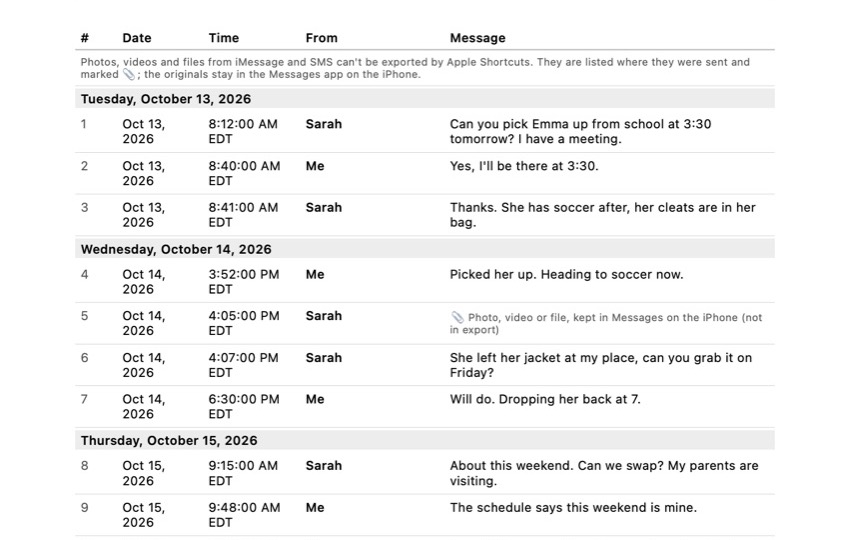
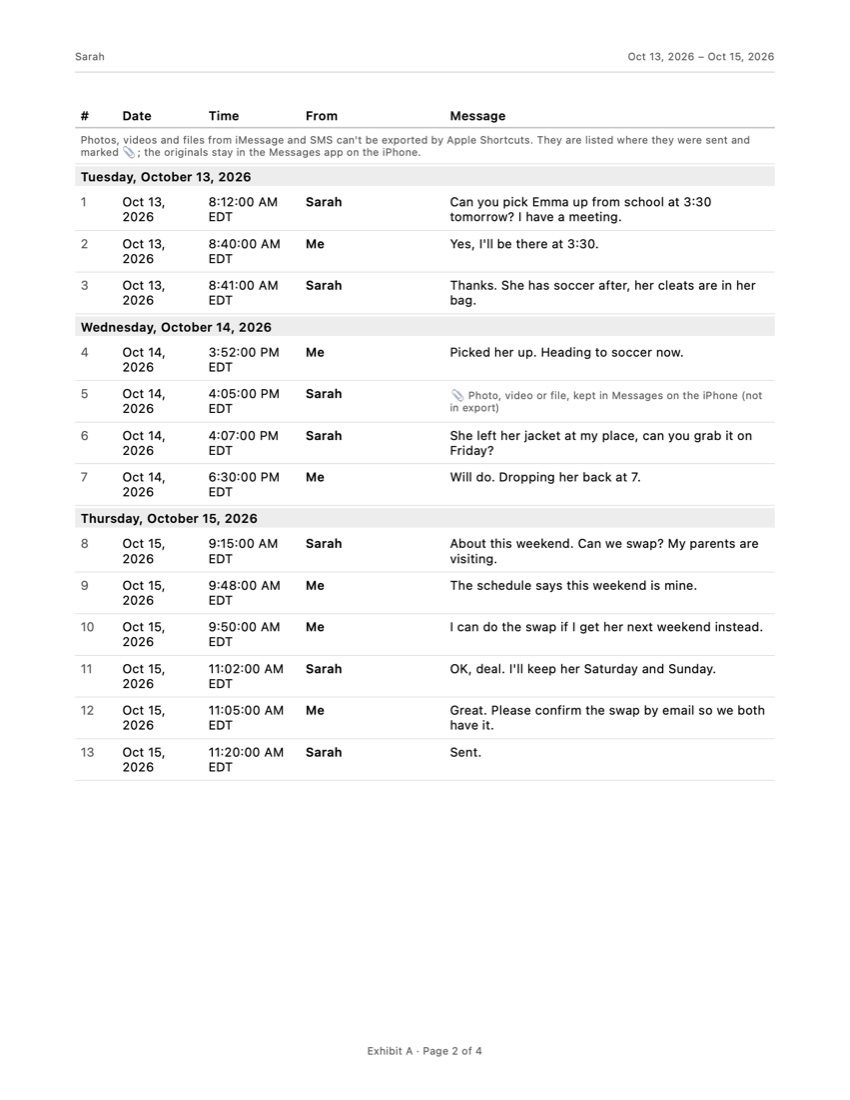
Exhibit opens WhatsApp’s export on your iPhone. In the share sheet after Export Chat, choose Exhibit (or save to Files and open the ZIP from Exhibit), mark which participant is you, pick the period, and export a PDF, CSV or TXT. The PDF has a cover page, a numbered table with the date, time and sender of every message, the time zone stated, “Page X of Y” on every page, an attachment index and an integrity page with SHA-256 fingerprints, so anyone can check later that the file was not changed. Media you included in the WhatsApp export can show in the record. Your conversations are processed on your iPhone and are not uploaded. Exhibit is free to download.
What it does not do: it cannot get around Advanced Chat Privacy, it cannot add messages that WhatsApp left out of the export, and it does not decide whether a court accepts the record. For iMessage and SMS conversations, which have no export button at all, see how to export text messages from your iPhone.
Before you send an export to anyone
- Keep the original chat on your phone. The export is a copy; the conversation in WhatsApp is what can be checked later.
- Keep the original ZIP unchanged and work on a copy. If you open the text file and edit it, even to fix a typo, it is no longer what WhatsApp produced.
- Check the period: open the text file or PDF and look at the first and last message. If the start is missing, you probably hit the size limit.
- Check the names: people who are not in your contacts appear as a phone number.
If the messages may end up in court, read can text messages be used in court? first. Whether a court accepts any record depends on the court and your jurisdiction, and a lawyer can tell you what to bring.
Frequently asked questions
What does Export Chat mean on WhatsApp?
It makes a copy of one conversation as a file you can keep or send outside WhatsApp. The chat stays in WhatsApp, nothing is deleted, and the other person is not notified. The copy is a text file, not a backup, so WhatsApp cannot read it back in.
Does the other person know I exported our chat?
No. WhatsApp does not post a message in the chat or notify anyone when you export it. The only visible change is the reverse: when someone turns on Advanced Chat Privacy, WhatsApp posts a notice in the chat and exporting stops working for everyone in it.
Can I export a WhatsApp chat for a specific date range?
Not in WhatsApp itself. Export Chat always takes the whole conversation, up to WhatsApp's own size limits. To hand over only a period, export the whole chat and then cut it to the dates you need with an app that lets you pick a From and To date.
Where do I find the exported chat on my iPhone?
Wherever you sent it. If you chose Save to Files, open the Files app and go to the folder you picked; the export is a ZIP file named after the chat. Tap it once and Files unpacks it into a folder with the text file and the media.
Can I export all my WhatsApp chats at once?
No. Export Chat works one conversation at a time. For a lawyer, HR or the police, one complete conversation per file is usually easier to read anyway.
Sources
Export the whole conversation
Exhibit turns an iMessage, SMS or WhatsApp conversation into one PDF with every date, time and sender, right on your iPhone. No computer, no account.
Get Exhibit, free download