How to print WhatsApp messages from your iPhone
You need a WhatsApp conversation on paper: for a lawyer, a mediator, HR or your own records. You look for Print in WhatsApp and there is none, not in the chat menu and not when you touch and hold a message.
Short answer
WhatsApp has no Print option. The reliable route on iPhone is Export Chat: open the chat, tap the contact or group name, tap Export Chat and save the ZIP to Files. You can print the text file inside it straight from Files, but it prints as plain lines without page numbers. For a readable printout with a numbered table, page numbers and the time zone, open the export in an app such as Exhibit, save it as a PDF and print that.
On this page
Which method should you use?
 Exhibit PDF from the exportExhibit
Of these methods, printing a PDF made from WhatsApp's export gives the most readable pages with numbers and the time zone, in about 5 minutes; printing the text file itself is free but hard to read. Screenshots take roughly an hour or more for 500 messages, about 50 screens, and only suit a few messages.
Why WhatsApp has no Print button
WhatsApp keeps conversations inside the app. Touching and holding a message gives you options such as Reply, Forward, Copy and Star, but not Print, and the chat info has no Print either. What it does have is Export Chat, which turns one conversation into a file. Every reliable way to print a WhatsApp chat starts there, so do that first:
- Open the chat and tap the contact’s name or the group name at the top.
- Scroll down and tap Export Chat.
- Choose whether to include media. For printing, Without media is smaller and faster; choose With all media only if the photos must be printed too.
- Tap Save to Files, pick a folder and tap Save.
The export is a ZIP file with a text log and any media you included. View once photos and videos are never exported, and if someone in the chat turned on Advanced Chat Privacy, Export Chat is blocked for everyone in it; then only Methods 3 and 4 work.
Method 1: Print the exported text file from Files
Free and works on the iPhone alone, if your printer supports AirPrint and is on the same Wi-Fi network.
- Open the Files app and go to the folder where you saved the export.
- Tap the ZIP file once. Files unpacks it into a folder.
- Open the folder and tap the text file (usually
_chat.txt). - Tap the Share button, then Print. (If you do not see Print, swipe up.)
- Tap No Printer Selected, choose your printer, check the number of pages, and tap Print.
What you get: every message on its own line with the date, time and sender, exactly as WhatsApp wrote it. What you do not get: page numbers, a heading, the time zone, or a clear break between messages. Long messages wrap across the full width of the page. For your own records that is fine; for someone else to read, it is hard going.
Method 2: Make a PDF from the export, then print it
This is where Exhibit fits. Instead of printing the raw text, you open the WhatsApp export in Exhibit on your iPhone, mark which participant is you, pick the period you need and save a PDF. Then open the PDF and print it with the Share button, the same way as Method 1.
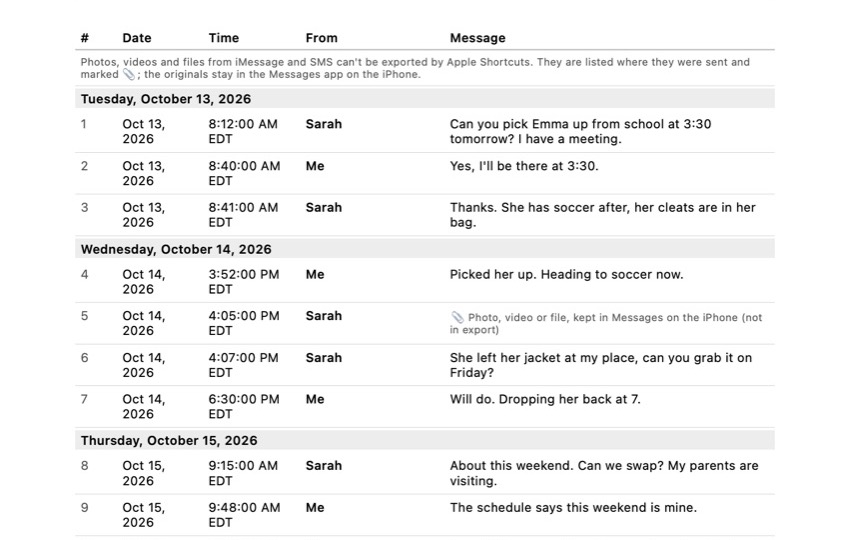
The printout has a cover page, a numbered table with the date, time and sender of every message, the time zone stated, a header on every page and “Page X of Y” in the footer, so loose pages can always be put back in order. An integrity page with SHA-256 fingerprints lets anyone check later that the PDF was not changed. If you exported With all media, the attachments are listed in the record. Your conversations are processed on your iPhone and are not uploaded. Exhibit is free to download.
What it does not do: it prints only what WhatsApp exported, so view once media and chats blocked by Advanced Chat Privacy cannot be printed this way. And it does not decide whether a court accepts the printout.
Method 3: Print from WhatsApp on a computer
If you use WhatsApp on a Mac, a Windows PC or WhatsApp Web, you can open the chat there and use the print command of the app or browser (Command-P or Ctrl-P).
- Link the computer to your WhatsApp account and open the chat.
- Scroll up until the oldest message you need is on screen. The computer only shows what it has loaded.
- Press Command-P or Ctrl-P and look at the preview carefully before printing.
Check the preview: depending on the app and browser, the printout can show only the visible part of the chat, cut off the side, or drop the times on some messages. Treat this as a quick option for a short chat, and count the messages on paper against the chat before you hand it over.
Method 4: Screenshots, printed from Photos
Fine for a handful of messages; slow for a whole conversation.
- Scroll to the messages and take a screenshot (side button and volume up at the same time).
- Repeat for every screen. A screen holds roughly 10 messages, so 500 messages take about 50 screenshots.
- In Photos, select the screenshots, tap the Share button, then Print.
Screenshots show the chat as you see it, including photos, but each message only shows its time, not always its date, and the date headers scroll out of view. Sorting and printing 50 screenshots in the right order takes roughly an hour or more. If you use them, include the screen with the contact name or phone number at the top, and number the pages by hand.
Before you print: check the page count and the order
The step most guides skip is the paper itself. A busy WhatsApp chat of a few years can run to hundreds of pages, and a stack of pages without numbers is easy to drop, shuffle or lose a page from without anyone noticing.
- Look at the page count in the print options before you tap Print. If it is in the hundreds, print only the period that matters and keep the complete export as a file.
- Make sure every page carries a page number, ideally as “Page X of Y”, so the reader can see the stack is complete.
- Print single-sided if the pages go to a lawyer or a court: copying and scanning single-sided pages is simpler.
- Keep the original chat and the export file. The printout is a copy; the chat on your phone and the untouched export are what can be checked later. Whether a court accepts a printout depends on the court and your jurisdiction; can text messages be used in court? explains what judges tend to look at.
For iMessage and SMS conversations, which have no export option in Messages at all, see how to print text messages from your iPhone.
Frequently asked questions
Can I print WhatsApp messages without a computer?
Yes. Export the chat to Files and print from the iPhone with AirPrint, either the text file itself or a PDF made from it. The iPhone and the printer must be on the same Wi-Fi network, and the printer must support AirPrint.
How do I print only part of a WhatsApp chat?
WhatsApp exports the whole conversation, so the choice comes after the export. In the iPhone's print options you can set a page range, but you rarely know which pages hold which dates. An app that lets you pick a From and To date before making the PDF is easier; screenshots work for a handful of messages.
Can I print the photos from a WhatsApp chat?
Export the chat With all media and the photos come as separate files in the export folder. Print them from Files or Photos, or use an app that puts them in the record next to the message that sent them. View once photos are never exported.
Why are some lines in my printout cut off or wrapped strangely?
The exported text file has one very long line per message. Printed as plain text, long messages wrap across the page without indentation, so it is hard to see where one message ends and the next begins. A PDF with a table layout avoids that.
Sources
Export the whole conversation
Exhibit turns an iMessage, SMS or WhatsApp conversation into one PDF with every date, time and sender, right on your iPhone. No computer, no account.
Get Exhibit, free download