How to export text messages from your iPhone to a PDF
Someone asked you for the conversation "as a PDF": a lawyer, an insurer, HR, or you just want one file you can keep. Messages has a Share button for single photos and links, but nothing that turns a whole thread into a document. There are three ways around that, and the PDFs they make are very different files.
Short answer
Messages on iPhone cannot save a conversation as a PDF in iOS 26. On the iPhone, an export app such as Exhibit turns one conversation and a period you choose into a PDF with every date, time and sender. On a Mac with Messages in iCloud, open the conversation and choose File > Print, then Save as PDF. Free but slow: take screenshots and combine them into one PDF in the Files app. That last PDF is only pictures, so you cannot search or copy its text.
On this page
Which method should you use?
 ExhibitExhibitexport app
Of these three, an export app makes the PDF people can actually work with, with every date, time and sender, in about 5 minutes. With a Mac, Save as PDF is a good free choice; the screenshot PDF is for a few screens, since 500 messages means about 50 screenshots and an hour or more.
Why “Share” in Messages does not make a PDF
On the iPhone, the Share options in Messages work on single items: a photo, a link, a contact. Touch and hold a message and you get Copy, Reply and More, but More only lets you select messages to forward or delete. There is no Print and no Save as PDF for a thread, and iOS 26 did not add one. So every PDF of a conversation is made somewhere else: in an export app, on a Mac, or from screenshots.
Before you choose, ask what the reader will do with the file. A lawyer or HR officer who has to quote message 212 needs real text, dates on every line and page numbers. A friend who wants to see one funny exchange does not.
Way 1: Export the conversation to a PDF on the iPhone
This is what Exhibit is built for, and it needs no computer.
- Install Exhibit and add the free Exhibit shortcut once (one tap in Apple’s Shortcuts app).
- Choose the conversation and the period: a week, a month, or everything.
- Mark which participant is you, so the sender column says the right names.
- Export as PDF and share it by Mail, AirDrop or Files.
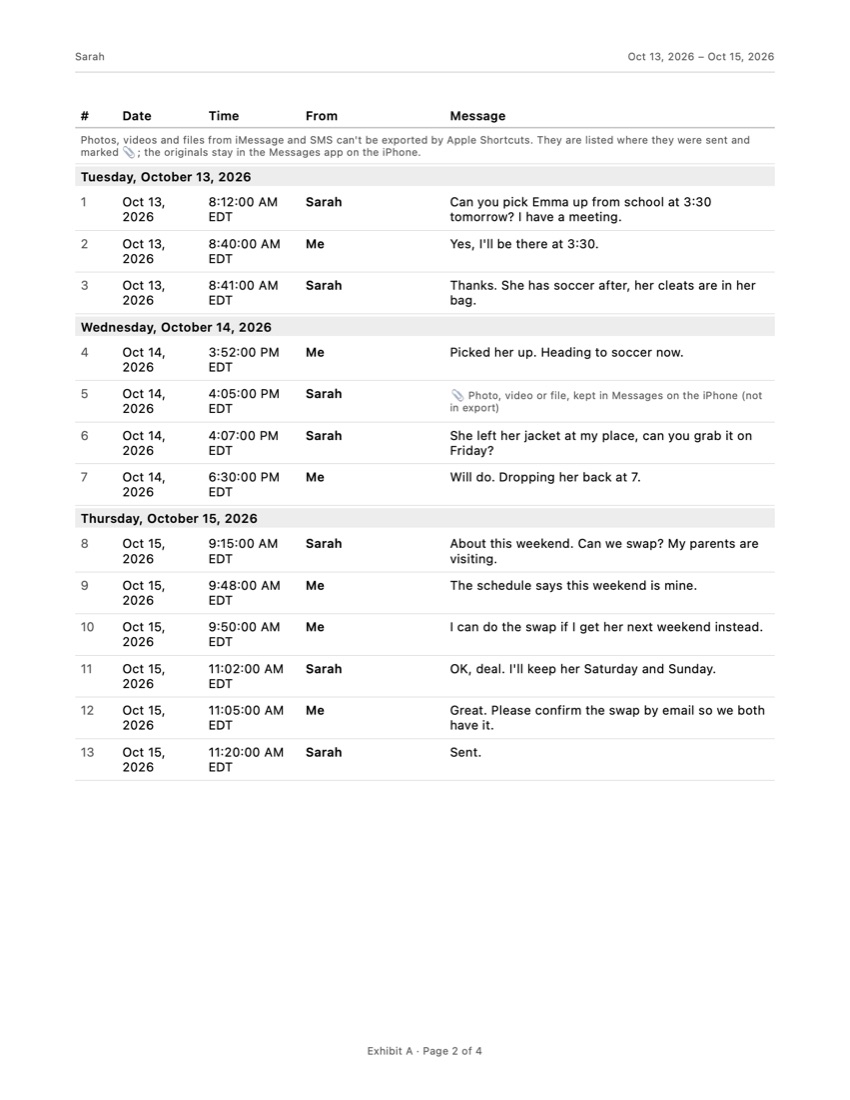
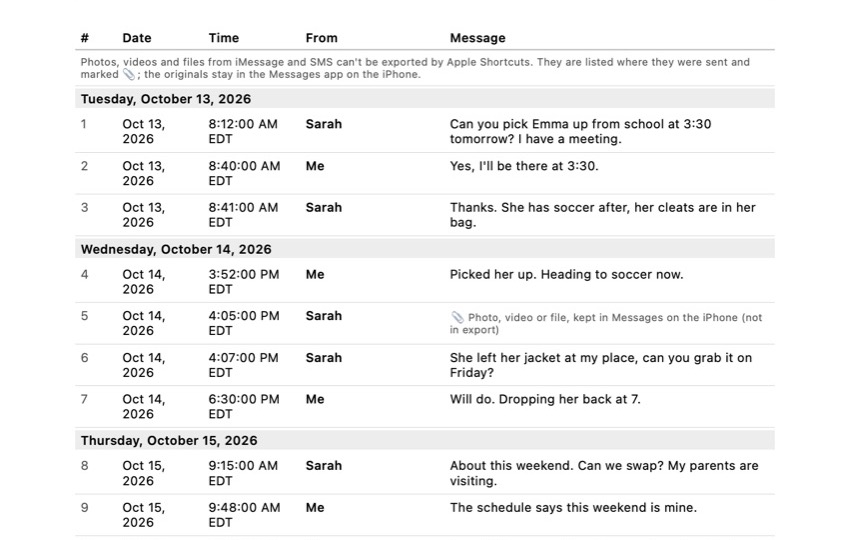
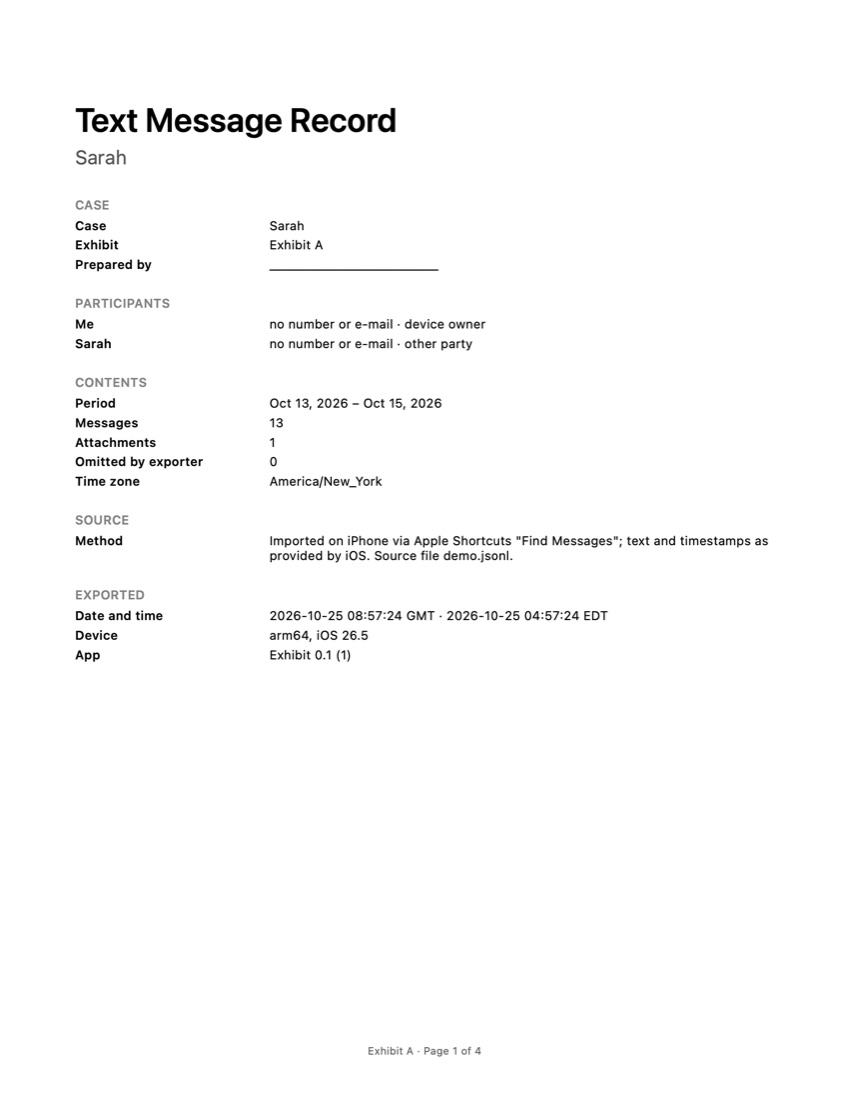
The PDF is US Letter, with a cover page, a numbered table of every message (date, time, sender, message, attachments), “Page X of Y” on every page and the time zone stated. The integrity page carries SHA-256 fingerprints, and a separate .sha256 file holds the PDF’s own fingerprint, so anyone can check later that the file did not change. If you leave single messages out, the cover page says how many were omitted. The honest limit: Apple Shortcuts cannot export photos, videos or files from Messages, so each attachment is listed where it appeared instead of shown. Exhibit is free to download; the export is a one-time payment, no subscription. The PDF export page shows every page of the file.
Way 2: Save the conversation as a PDF on a Mac
Free if you have a Mac signed in to the same Apple Account.
- On the iPhone, check that Messages in iCloud is on: Settings > your name > iCloud.
- On the Mac, open Messages > Settings > iMessage and turn on Enable Messages in iCloud, then wait for the history to arrive.
- Open the conversation and scroll up until the first message you need is on screen. Messages only includes what it has loaded.
- Choose File > Print. Open the PDF menu at the bottom left of the print window and choose Save as PDF. Give the file a clear name, such as the contact and the period.
The result is a real PDF with selectable text, laid out the way the Mac shows the thread. Check two things in the preview. Times are grouped under headings, so not every message shows its own time. And SMS from Android phones only appear if they reached the Mac through Messages in iCloud or Text Message Forwarding.
Way 3: Combine screenshots into one PDF, on the iPhone
Free and possible on the iPhone alone, but only sensible for a few screens.
- In the conversation, swipe left and hold to show the times, and take a screenshot with the side button and volume up. Repeat down the thread with a little overlap.
- In Photos, select the screenshots, tap Share, then Save to Files, and pick one new folder.
- Open that folder in the Files app, tap the More button, then Select, and select the screenshots in order.
- Tap the More button at the bottom and choose Create PDF. Files puts the images together in one PDF in the same folder.
What you get is a PDF of pictures. A screen holds about 10 messages, so 500 messages means about 50 screenshots, each with its swipe for the times, then sorting them: roughly an hour or more. If you need another period later, you start again.
The PDF that looks right but is only pictures
The screenshot PDF and an exported PDF look alike on a phone screen. Open both on a computer and the difference shows straight away.
- Search. In an exported PDF you can search for a word, a name or an amount and jump to it. In a screenshot PDF, search finds nothing, because the words are pixels. A lawyer going through 50 pages will notice.
- Copy. Quoting a message from a text PDF is copy and paste. From pictures it means retyping, with room for mistakes.
- Size. Fifty full-resolution screenshots can make a PDF too large to email. Many email services stop at roughly 20 to 25 MB.
- Dates. A screenshot shows only the times you revealed and the date headings that happened to be on screen, often without the year.
If the PDF is for someone who has to rely on it, send a PDF with real text and a date on every message, and keep the original conversation on the phone. Thinking of court? Read can text messages be used in court first. Need a spreadsheet or a plain text file instead of a PDF? See how to export text messages from an iPhone.
Frequently asked questions
Can I convert a text message to a PDF without an app?
Only by detour. Without a computer, take screenshots and combine them into one PDF in the Files app. With a Mac, use File > Print in Messages and save as PDF. Neither works from the Messages app on the iPhone alone.
Can I export just part of a conversation to PDF?
Yes. On a Mac, scroll so the part you need is loaded and check the print preview; you may get more than you want. With screenshots you choose exactly what you capture. An export app usually lets you pick a date range, which is the cleanest way to give someone one month instead of three years.
Why is my PDF of screenshots so large?
Each screenshot is a full-resolution image, so 50 of them add up quickly. Many email services cap attachments at roughly 20 to 25 MB. Share a large PDF through iCloud Drive or a file link instead, or split it into periods.
Does exporting to PDF include photos from the conversation?
It depends on the method. Screenshots and a Mac printout show photos as they appear in the thread. Exports built on Apple Shortcuts cannot include iMessage photos or videos, so save the ones that matter separately (touch and hold > Save).
Can someone edit the PDF after I send it?
Any PDF can be edited with the right software. What helps is a fingerprint: a SHA-256 value recorded when the PDF was made. If the file is changed, the fingerprint no longer matches, so you and the other side can check you are looking at the same file.
Sources
Export the whole conversation
Exhibit turns an iMessage, SMS or WhatsApp conversation into one PDF with every date, time and sender, right on your iPhone. No computer, no account.
Get Exhibit, free download