How to print text messages from your iPhone for court
You have a hearing coming up and the texts that matter are on your iPhone. You want them on paper, you would rather not pay for software, and you are worried the judge will not accept a stack of screenshots. Here is what the paper needs to show and how to get there for free.
Short answer
There are two free ways. With a Mac signed in to the same Apple Account, sync Messages through iCloud, open the conversation and choose File > Print. Without a Mac, take screenshots while swiping left to show the times, then print them from Photos. Whatever you use, the printout should show who sent each message, the full date and time, and the messages around the ones that matter. Bring enough copies, number the pages, and keep the phone; the court decides what it accepts.
On this page
Which method should you use?
 ExhibitExhibitexport app
If you have a Mac, File > Print is the best free way; without one, screenshots work for a short conversation but take roughly an hour for 500 messages. Of these methods, an export app is the fastest way to a numbered printout the other side can check.
What the judge needs to see on the paper
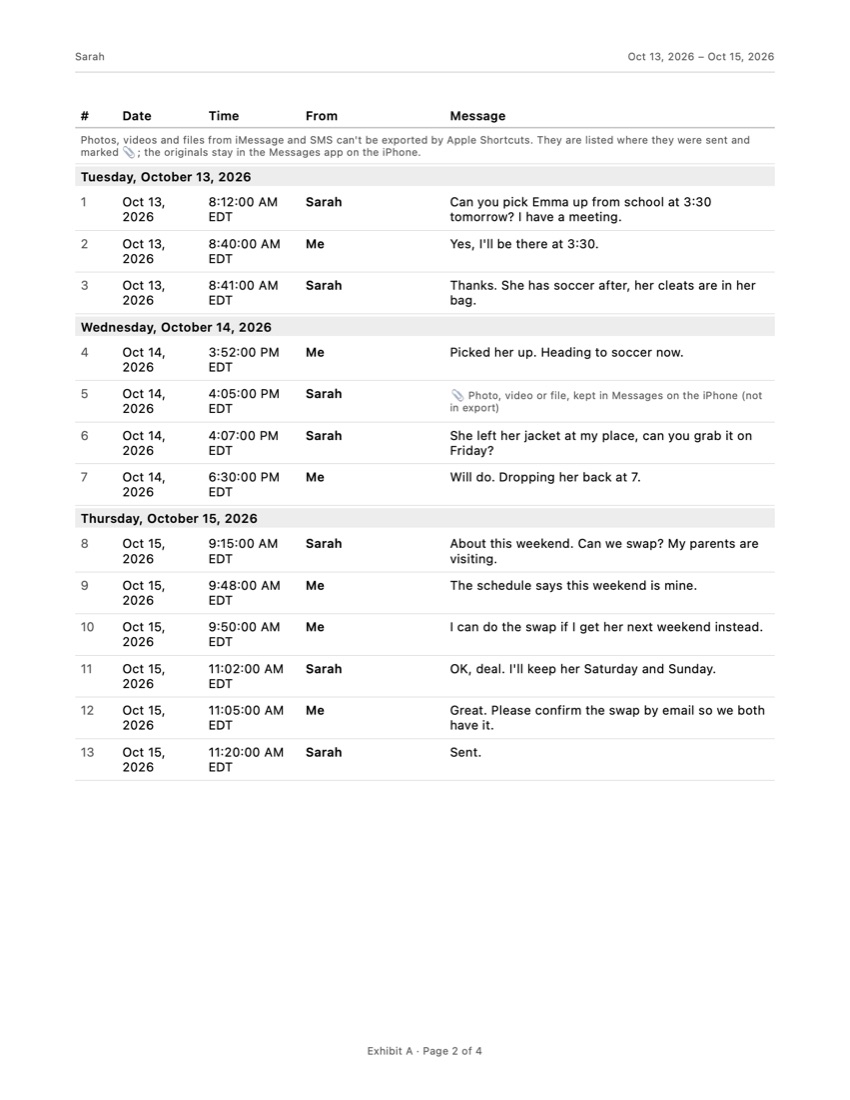
A judge reading your printout has a few quiet questions: who wrote each message, when, and is this the whole story or a selection. Whether the messages are allowed at all is a separate question, explained in can text messages be used in court. This page is about the paper itself.
A useful printout shows:
- The sender of every message. In a one-on-one chat that is clear; in a group chat, check that names appear next to the bubbles.
- The full date, including the year, and the time. “Tuesday 9:41” is not enough a year later.
- The messages before and after the ones that matter, so nobody can say you left out the context.
- Page numbers, so you can say “page 4, the third message” instead of leafing through a stack.
- Nothing added. No arrows, circles or highlights on the copies you hand in.
The free methods below can get you most of this. They just ask more checking from you.
Free way 1: Print the conversation from a Mac
If you have a Mac (yours or a family member’s, signed in to your Apple Account), this is the best free route for anything longer than a few screens.
- On the iPhone, open Settings, tap your name, then iCloud, and make sure Messages in iCloud is on.
- On the Mac, open Messages, choose Messages > Settings > iMessage and turn on Enable Messages in iCloud. Give it time to download the history.
- Open the conversation and scroll all the way up to the first message you need. Messages only prints what it has loaded.
- Choose File > Print. In the preview, check that the dates and the sender names you need are visible, then print. To print later or at a copy shop, use the PDF menu at the bottom left and save a PDF instead.
Look at the preview carefully before you print 40 pages. The Mac groups messages under date headings, so not every bubble has its own time. If the exact time of one message matters, write it down from the phone and mention it when you speak. More detail on this route is in our guide on how to print text messages from an iPhone.
Free way 2: Screenshots printed from Photos
Without a Mac, screenshots are the free option. They are fine for a short exchange and painful for a long one.
- In the conversation, swipe left and keep your finger down: the time of every message slides in on the right.
- With your other hand, press the side button and volume up together to take the screenshot.
- Scroll and repeat, letting each new screenshot overlap the previous one by a message or two.
- Scroll to the date heading above the first message and capture it too, so the date is on paper. If the heading shows only a weekday or no year, write the full date on your own copy.
- In Photos, select the screenshots in order, tap Share, then Print. One screenshot per page keeps the text large enough to read.
Count on about 10 messages per screen. For 500 messages that is about 50 screenshots, each with the swipe for the times, then putting them in order and numbering the pages by hand: roughly an hour or more.
When a paid export saves you the evening
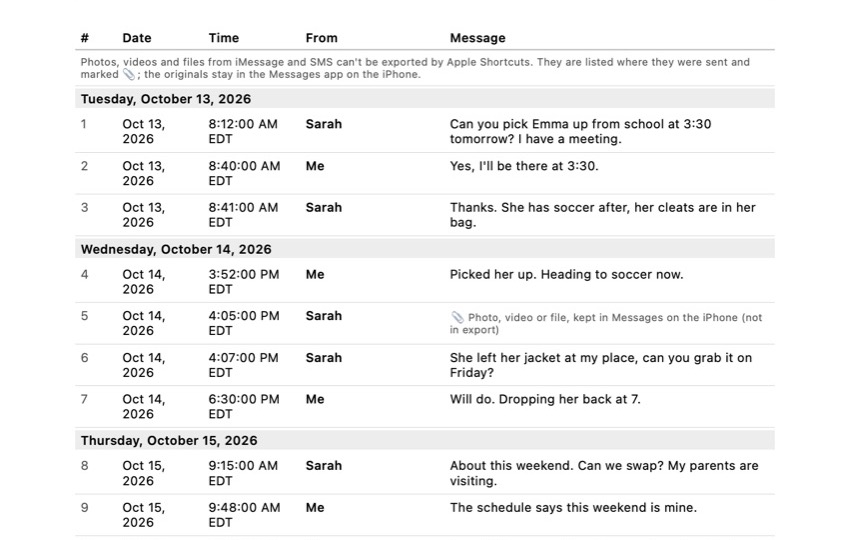
If the conversation is long, or the hearing is tomorrow, Exhibit does the same job on the iPhone in about 5 minutes. You pick the conversation and the period, and it makes one PDF: a cover page, every message in a numbered table with its date, time, sender and the time zone, “Page X of Y” on every page, and an integrity page with SHA-256 fingerprints so the other side can check later that the file did not change. You can sign the declaration on that page with your finger, or leave the lines blank for a pen; some courts ask for a handwritten or notarized signature.
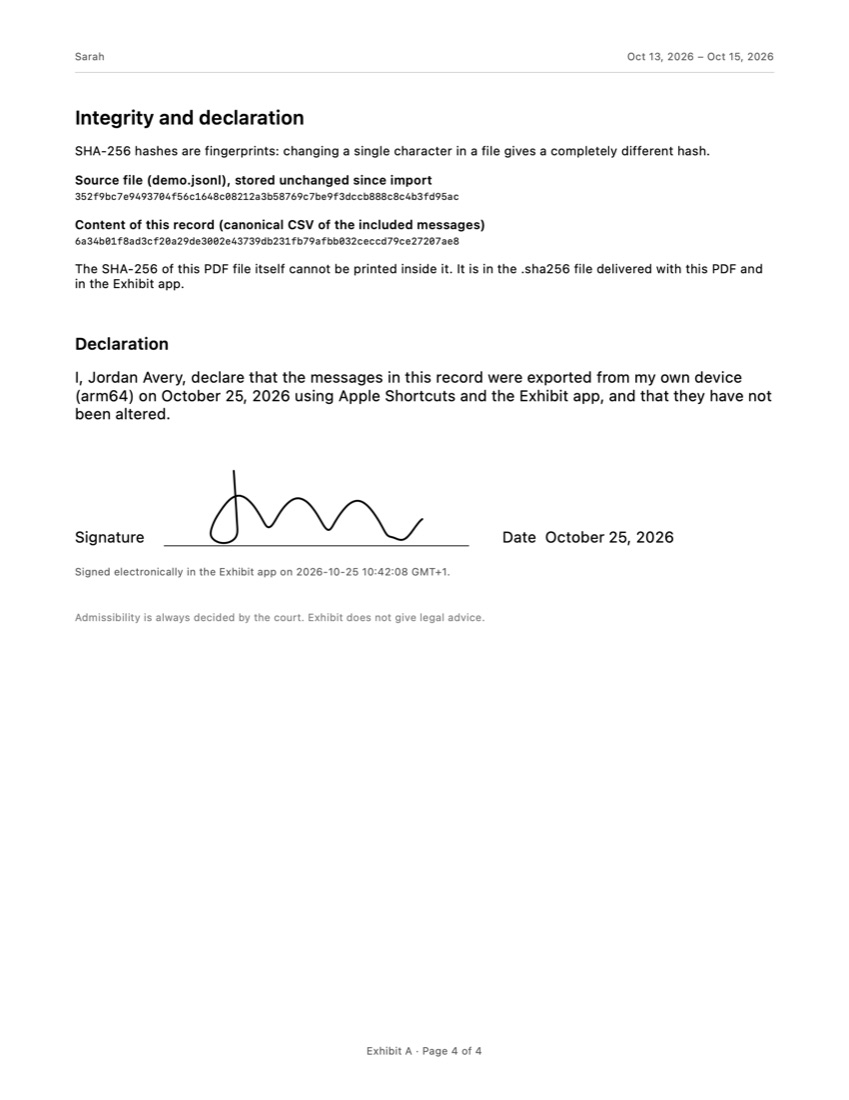
What it does not do: Apple Shortcuts cannot export photos, videos or files from Messages, so each one is listed where it appeared instead of printed. Print important photos separately. Exhibit is free to download and to preview; the export itself is a one-time payment, no subscription.
Getting the printout ready for the courtroom
Once the messages are on paper, a few habits make them easier to use. Rules differ between courts, so treat these as questions to check with the clerk or your court’s self-help center.
- Copies. California’s self-help guide says to bring enough for the judge, the other side and the witness. Add one for yourself, highlighted any way you like.
- Labels. Some courts want you to mark exhibits (often numbers for the person who started the case, letters for the other side); others want them unmarked until the judge admits them. Ask before you put stickers on.
- Sharing in advance. Many courts expect the other side to get your exhibits before the hearing. Missing a deadline can keep good messages out.
- Private details. In federal court, Rule 5.2 says filings may show only the last four digits of Social Security and account numbers, the year of a birth date and the initials of a child. State courts have their own versions. Black these out on the copies you file, not on your original.
- The phone. Bring it, charged, with the conversation still on it. Do not delete or edit anything in the thread before the case is over.
For family cases, our page on text messages in a custody case covers what else to keep.
The time zone trap on printed texts
Messages on iPhone shows every time in the phone’s current time zone. If you moved, or the messages were sent while one of you was traveling, the printout can show 11:40 PM for a message the other person’s phone shows at 8:40 PM. In a case about who said what first, or whether someone broke a curfew in a parenting plan, a three-hour difference looks like a contradiction.
Before you print, check where your phone thinks it is (Settings > General > Date & Time) and write the time zone on the first page of your printout. If the other side’s copy shows different times, you can explain it in one sentence instead of being caught out. A printout that states its time zone removes the question before anyone asks it.
Frequently asked questions
Can I print text messages for court for free?
Yes. Printing from Messages on a Mac costs nothing if you have a Mac, and screenshots printed from Photos cost nothing at all. Both take longer than an export app and leave more to check by hand, such as the year on each date and the page numbers.
How many copies of my text messages should I bring to court?
Courts differ, so ask the clerk or the self-help center. A common rule of thumb from court self-help pages is one copy for the judge, one for each other party or their lawyer, one for a witness who will talk about it, and one for yourself.
Do I need to send my printed texts to the other side before the hearing?
Often yes. Many courts expect you to share your exhibits with the other party before a hearing or trial, sometimes by a deadline. Check your court's local rules or ask the clerk; a surprise exhibit can be kept out.
Should I highlight the important messages?
Not on the copies you hand in. Give the court a clean copy and keep a highlighted one for yourself, so you can find the messages quickly while you speak. Point the judge to them by page number.
Is a printout enough, or do I need to bring my phone?
Bring the phone too, charged, with the conversation still on it. A printout is a copy; if the other side says a message was changed or made up, the original on the device is what can be checked.
Sources
Export the whole conversation
Exhibit turns an iMessage, SMS or WhatsApp conversation into one PDF with every date, time and sender, right on your iPhone. No computer, no account.
Get Exhibit, free download