How do you copy an entire text conversation on iPhone?
You want the whole thread with someone, not one message: to paste it into a document, send it to yourself, or keep it somewhere safe. You touch and hold a message, tap Copy, and realise it only took that one bubble.
Short answer
You can't do it in one step in Messages: on iOS 26, Copy works on one bubble at a time and there is no Select All for a thread. To get a whole conversation out, export it: an export app like Exhibit turns the thread, or a period you choose, into one TXT, CSV or PDF file with the date, time and sender of every message. With a Mac, File > Print in Messages saves what you scroll back to as a PDF. Copying bubble by bubble only suits a few messages, because the dates and names stay behind.
On this page
Which method should you use?
 ExhibitExhibitexport app
Of these methods, an export is the only one that copies every message of a thread at once with the date, time and sender kept, in about 5 minutes; Copy and Forward work for a handful of messages, and screenshots of 500 messages mean about 50 images, each with a swipe for the times.
Why Copy only takes one message
Messages treats every bubble as its own item. When you touch and hold one in iOS 26, the menu offers things like Reply, Copy and More, and Copy puts only the text of that single bubble on the clipboard. The conversation has no Select All, and the details screen (tap the name at the top) has no Export or Copy conversation option either.
That is why “copy the whole conversation” really means one of two jobs: copying a few messages, which the iPhone can do, or getting the entire thread out as one piece, which needs an export or a computer. The steps below work the same for blue iMessages and green SMS texts.
Method 1: Copy a few messages by hand
- Open the conversation in Messages.
- Touch and hold a message and tap Copy.
- Open Notes, Mail or a document and paste.
- Go back and repeat for the next message.
To know when each message was sent, swipe left in the conversation: the times appear on the right. Type them in next to what you pasted, along with who said it, because the clipboard carries only the words.
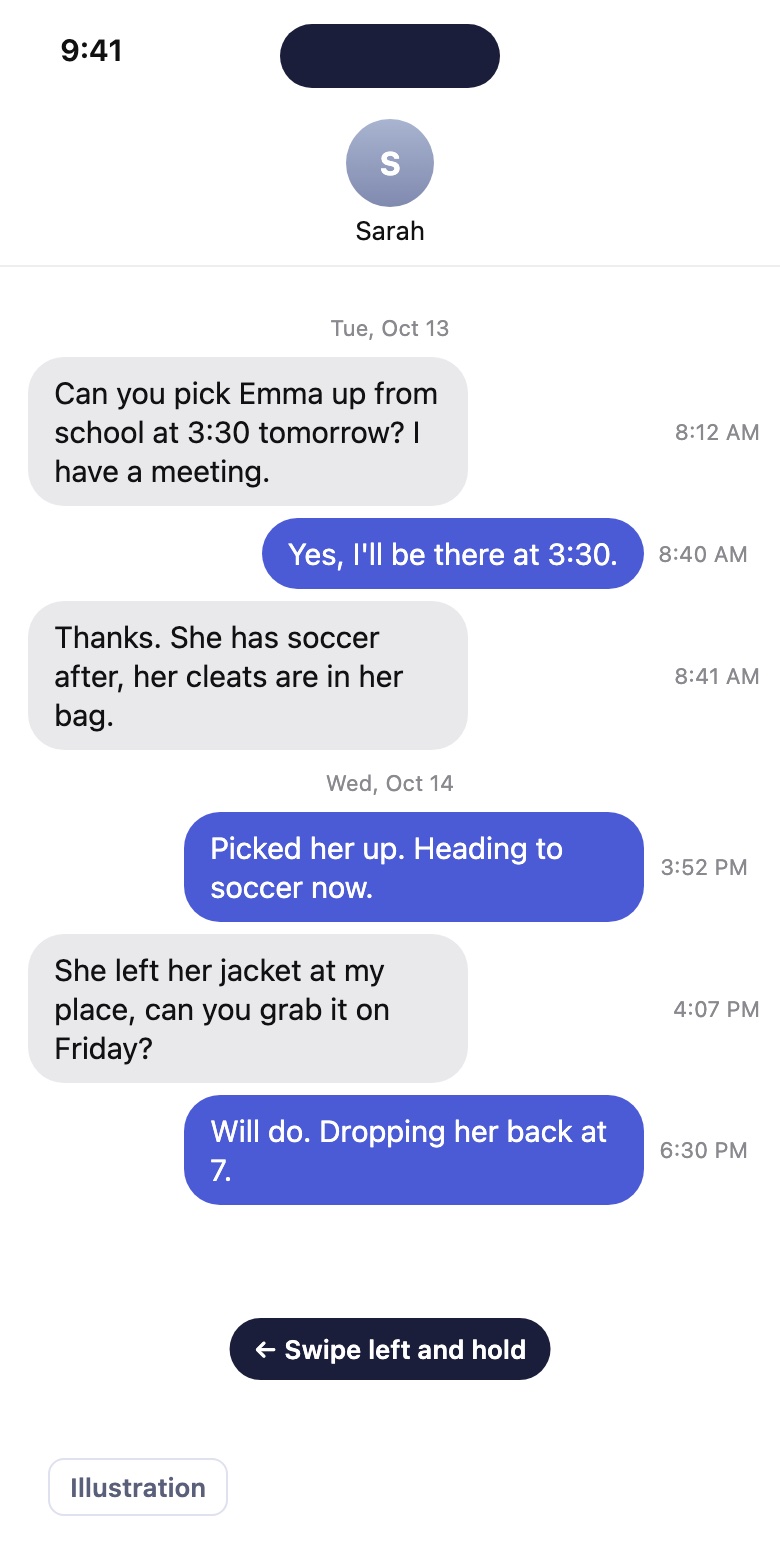
What you keep: the exact words, as text you can edit and search. What you lose: dates, times, names, photos and the order, unless you add them yourself. For a long thread this takes hours.
Method 2: Tick several bubbles and forward them
- Touch and hold a message, then tap More. A circle appears next to every bubble.
- Tick each message you want. Scroll up to reach older ones; there is no way to tick them all at once.
- Tap the Forward arrow (in the newest iOS it is the Share button), enter your own number or email address, and send.
You now have the selected texts in one new message, which you can open on your other devices and copy in one go. The catch: that new message is dated today, the bubbles from both people are merged into it, and it lands in a new conversation, so it is a reminder, not a record. Forwarding to yourself is fine; forwarding someone’s private messages to others may not be.
Method 3: Export the whole conversation with Exhibit
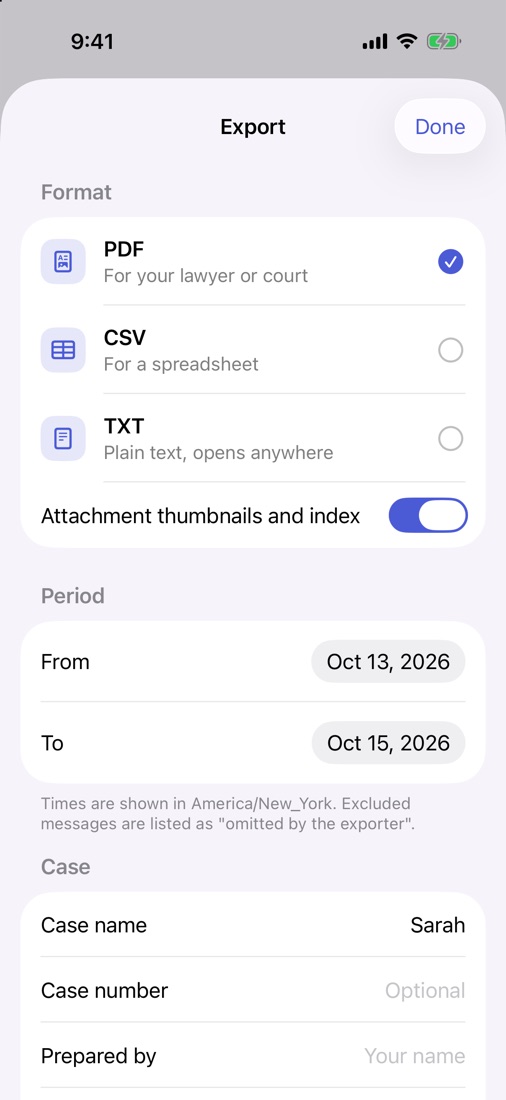
When you want every message of the thread in one place, Exhibit does the part Messages leaves out. You add the free Exhibit shortcut once, choose the conversation, and pick either the whole thread or a period, for example the last three months. Exhibit then builds one file on the iPhone:
- TXT for plain text you can paste into any document or email;
- CSV for a table in Excel, Numbers or Google Sheets, one row per message with its date, time and sender;
- PDF for a numbered, readable copy to keep, print or send.
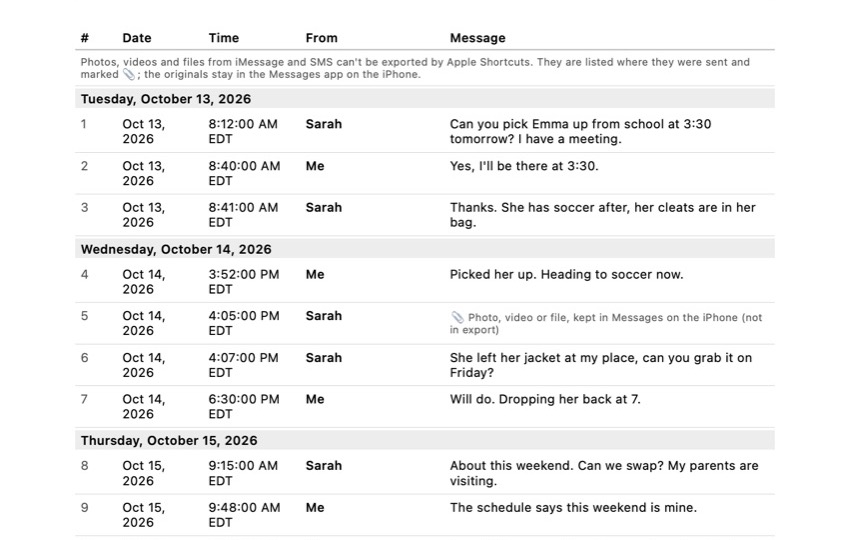
Each format keeps who wrote each message and when (the PDF also states the time zone), so nothing has to be retyped. For about 500 messages it takes roughly five minutes, setup included, and you can run it again later for a new period without starting over. Exhibit builds the file on the iPhone itself; it has no account and does not upload your conversations.
What it does not copy: Apple Shortcuts cannot hand over iMessage photos, videos or other attachments, so Exhibit marks where each one was in the conversation instead of including it. Save the pictures separately: touch and hold one and tap Save. Exhibit is free to download. For the format choice in detail, see how to export text messages from your iPhone.
Method 4: With a Mac, print the thread to a PDF
If you have a Mac signed in to the same Apple Account with Messages in iCloud turned on, the full thread appears there too.
- Open Messages on the Mac and select the conversation.
- Scroll up until the oldest message you want is loaded; Messages only prints what it has loaded.
- Choose File > Print, then pick Save as PDF in the print window.
You get one PDF that looks like the conversation on screen, usually in 10 to 20 minutes for a long thread. You can select and copy text from it, though pasted text from a PDF of bubbles often comes out in a jumbled order. The guide on printing text messages from an iPhone covers the print options step by step.
The mistake: pasting a conversation without who and when
Most “copy the whole thread” tips end with a block of pasted text. It looks complete, but read it back a week later: you can’t tell which lines were yours, which were theirs, or whether a reply came a minute or a month later. Group chats are worse, since three or four voices merge into one column of words.
If the thread is only for you, that may be enough. If anyone else will read it, such as a lawyer, an insurer, a landlord or a family member, keep three things with every message: the sender, the date and the time. An export does that automatically; by hand, type them in as you paste. And keep the original conversation on the phone until you no longer need it: set Keep Messages to Forever in Settings > Apps > Messages, as described in how to save text messages on iPhone.
Frequently asked questions
Can I select all messages in a conversation on iPhone?
Not for copying. Touch and hold a message, tap More, and you can tick several bubbles, but the only things you can do with them are delete or forward. There is no Select All button, so a long thread means ticking hundreds of circles by hand.
Does forwarding a conversation to myself keep the dates?
No. Forwarded bubbles arrive as a new message, dated the moment you forward them, and you can't tell from them who wrote what. They are fine as a quick reminder for yourself, not as a record of when something was said.
How do I copy a long text thread into a Word or Google document?
Export it as a TXT or CSV file first, then open or paste that file into your document. A CSV opens as a table in Excel or Google Sheets, with a column for the date, time and sender, which is easier to work with than pasted bubbles.
Can I copy text messages from iPhone to my computer without an app?
With a Mac, yes: turn on Messages in iCloud on both, open the conversation in Messages on the Mac and use File > Print to save it as a PDF. On Windows there is no Messages app, so you need an export app on the iPhone or a desktop program that reads an iPhone backup.
Sources
Export the whole conversation
Exhibit turns an iMessage, SMS or WhatsApp conversation into one PDF with every date, time and sender, right on your iPhone. No computer, no account.
Get Exhibit, free download